Managing Devices
The Device List section displays all Device Management Agent (DM Agent)-managed devices and Work from Home (WfH) Client-managed devices. The devices are grouped based on IP Address, Model Name, and Hostname. If you are managing Brother devices, these devices are listed under a separate entry in the Models list.
In this section, you can create categories and groups to manage your fleet efficiently. Selecting a device in the Device List grid will display the device properties.
Please see an example below when the Device List is populated.
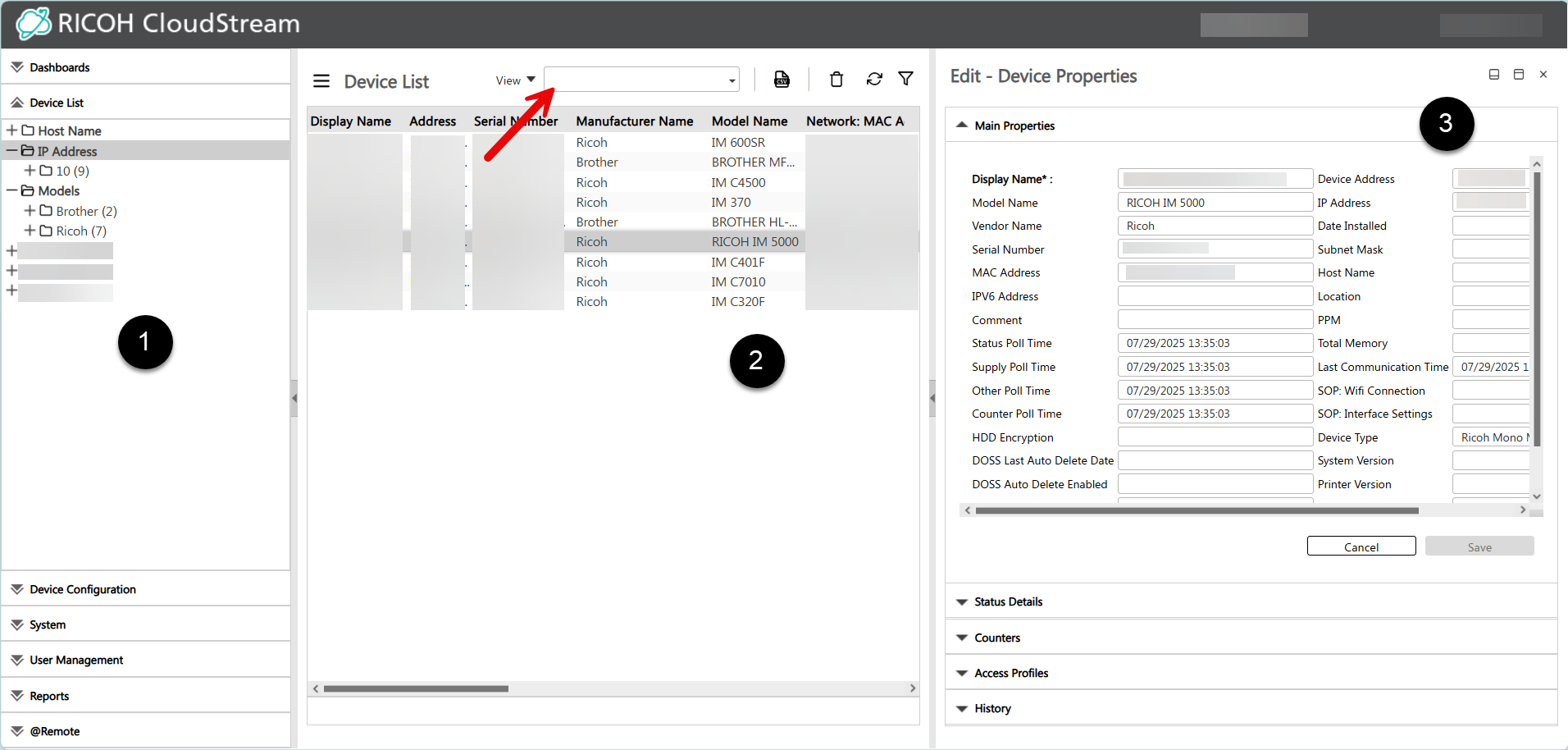
Here is a list of what you see in the Device List section.
| Number | Description |
|---|---|
|
|
The "IP Address" and "Models" are called Categories The folder "192" is a Group under the category "IP Address".
|

|
The Device List displays all your registered devices.
|

|
The Device Properties pane is opened when you select a device in the Device List. Please see Device Main Properties. |

|
Work from Home (WfH) Devices. |

 export icon to export the list. If you apply filter on your list view, only the devices shown in the filtered list will be exported.
 Clicking the [Delete] button in the Device List will only remove the device from the list temporarily if a certificate is still active.
Note that when the “Atremote Management Mode” in the Device List is set to “Managed,” it is not possible to delete a device from the DeviceList.
You must properly delete the device and its certificate. To delete a device, please go to Remove Device from CloudStream DM.
In summary, you can effectively manage and monitor your devices by using the following functions.
Manage Device List Display
| Create Categories and Groups. |
| Set Device View. |
| Filter Device List. |
Viewing Device Properties
| Device Main Properties. |
| Status Details. |
| Counters. |
| Activity Logs. |
| Optional Properties. |
| Access Profiles. |
| History. |
Work from Home
| Work from Home (WfH) Devices. |
| Set Work from Home Polling. |
| View WfH Device Groups. |
| WfH Device Properties. |
| Change WfH Device State. |
| Work from Home (WfH) Client. |
Configure Devices
| Configuration Task. |
| Device Policies. |
| Alert Policy. |
Deactivate Device
| Deactivate or Reactivate a Device |
Remove Device
