Optional Properties
This node displays the two optional device properties; Custom Properties and Installed Applications.
A custom property helps you and other admins add customized information to the device as an optional property.
For example, if you want to add information about the device's owner as a property, you can set the property to "Owner", then input the name of the owner of the device.
To do so, please follow the steps below.
-
Login as an administrator.
-
Go to System and expand Server Settings.
- Click Display.
-
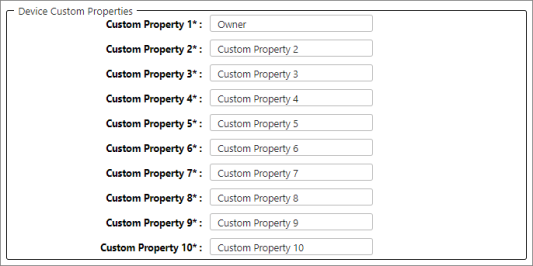
In the Device Custom Properties, select a custom property and overwrite the name of your preference.
In this example, the Custom Property 1 value is "Owner".
-
Click [Save]. (Scroll down to see the save button)
-
Logout from CloudStream DM, then login again.
-
Go to Device List.
-
Select the device you want to edit.
-
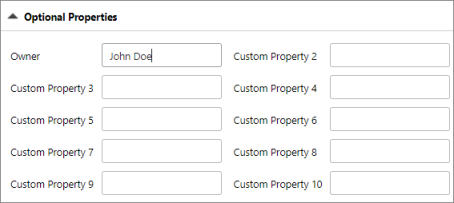
Open Optional Properties and you will see the property displayed as "Owner".
-
Enter a value for the "Owner" property.
-
Click [Save].
 More display information can be found in Display Settings.
Displays the list of applications that are installed on the device.
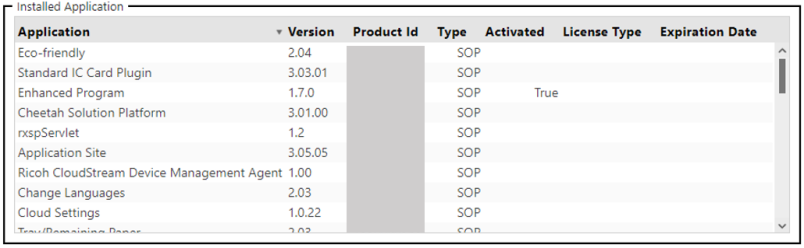
The table has the following columns.
| Column Header | Description |
|---|---|
| Application | The Application Name. The application installed to the device is displayed here. The RICOH CloudStream Device Management DM Agent is also displayed here. |
| Version | The application's version number. |
| Product ID | The product ID of the application. |
| Type | This item displays the type of application. The value can be one of the following:
|
| Activated | This item displays whether an application is activated.
|
| License Type | This item displays the application license type.
|
| Expiration Date | This item displays the application's expiration date. If there is no expiration date, a blank is displayed. |
