Filter Device List
Use the filter function to narrow down your search.

-
Click
 filter icon so the filter boxes will display.
 -
Input the value in the box above the column where you want to search.
For example, to search for the device IM 7000, input "IM 7000" in the search box above the Model Name column.
-
Click the
 filter search button. You can also press the 'Enter' key on your keyboard.
All devices that match your search will be displayed in the list.
 If you want to remove the search result, delete the text you inputted or items you selected from the search boxes, then click the filter search button. Clicking the filter button will not remove the filter criteria but will only hide the search boxes.
Filter by value
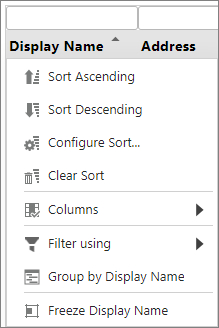
You can also filter and sort the values using the following options. Right- click on one of the columns to view the sub-menus.
| Option | Description |
|---|---|
|
|
Sorts the device list in ascending order. If there is an active search criterion, the search results will be sorted in ascending order when this option is selected. |
|
|
Sorts the device list in descending order. If there is an active search criterion, the search results will be sorted in descending order when this option is selected. |
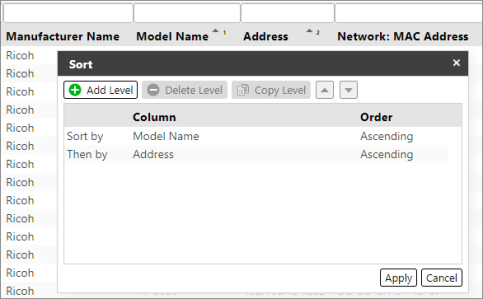
| Configure Sort | Allows you to sort by level. When selected, the following dialog will display.
For example: Add a second level to sort the device based on Address. All devices will be sorted based on the Model Name and then will be sorted based on Address. You can see the level displayed in the column name. |
| Clear Sort | Clears all sorting configurations. If there is no active sorting option, this menu is not displayed. |
| Columns | Allows you to select the columns displayed in the list. |
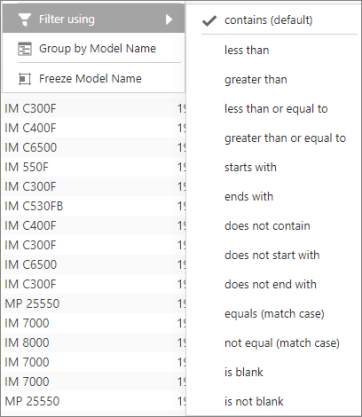
| Filter using | When selected, more filter options are displayed. Select the option you want to use. When the filter is applied, all devices that match the filter criteria will be displayed in the list.
|
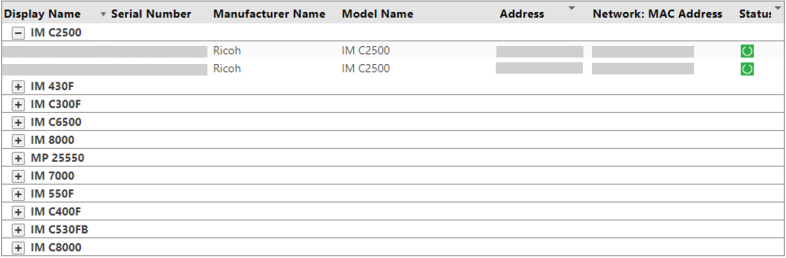
| Group by <Column name> | Groups the list based on the selected column. For example, when Group by Model Name is clicked, the following will be displayed.
Click ungroup from the sub-menu to remove the grouping. |
| Freeze <Column name> | Moves the selected column to the farthest left and freezes it. You can scroll to the right to see other columns, but frozen columns will remain displayed. |