View WfH Device Groups
WfH devices are displayed in the Device List under the Host Name category. A WfH group is added by default and shows all WfH devices. You can also find WfH devices in the IP Address category under the $NA$ group. Click the device from the list to view the WfH Device Properties.
 If the WfH and $NA$ groups are not displayed, this implies that no WfH device has been discovered. Please check the configuration in the WfH Client or the device’s address and port.
When you open the WfH or $NA$ group, the devices are grouped based on their state, as you can see in the image below.
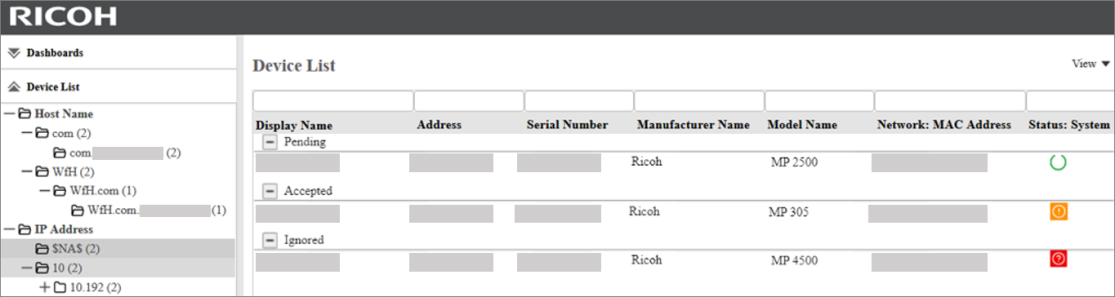
The device’s IP Address will not be displayed, so the Device Display Name and Address will be different for WfH devices.
-
Device Display Name will be the WfH Client machine’s “<Hostname>.<DomainName>”.
For example, the user installs the WfH Client to their laptop with hostname "COMP12345" and is connected to a domain "CompanyDomain".
The resulting Display Name is "COMP12345.CompanyDomain".
-
Address will become “<Hostname>.<DomainName>.WfH”
To change the state of the device, please go to Change WfH Device State.
 The WfH or $NA$ group may appear when you create a task or any operations that allows you to select a device or group. However, WfH devices will not display for selection. Please refer to Work from Home (WfH) Devices for the list of functions you can carry out on WfH devices.
