Install Work from Home Client
-
Login to your home PC using the user account registered to CloudStream DM.
-
Run the installer WfHClientSetup.exe. Please make sure you have administrator rights to install the application on your client machine.
-
In the installation wizard, read the information, then click [Next].
-
Read the Software License Agreement and agree to the license agreement, then click [Next].
-
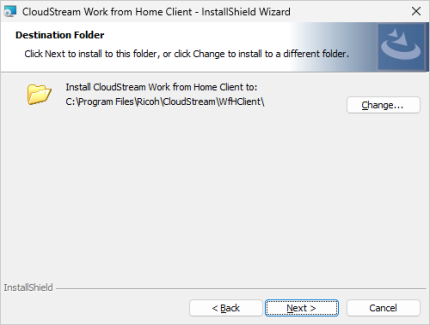
(Optional) Select the destination folder location. By default, a location is already specified; you can modify the path by clicking the [Change…] button. Once a folder is selected, click [Next].
-
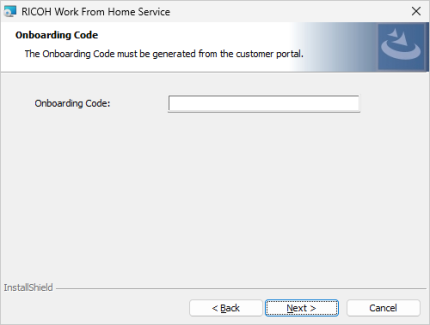
In this screen, input the WfH Client onboarding code and click [Next].
-
Enter the Service Locator address and the Server Port. The default port is 443.
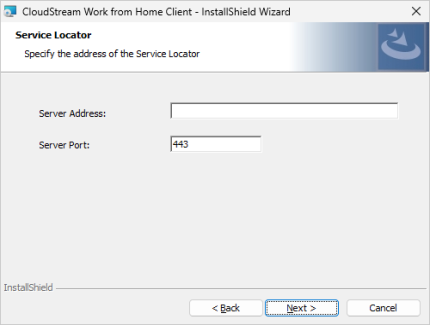
 The service locator address is given after purchasing the application. If you have the Service locator URL, remove the protocol and the port, leaving only the service locator's address.
This field requires the service locator address and not the URL. An example of a service locator address is msl-mymsl.com, while the service locator URL is https://msl-mymsl.com:443.
-
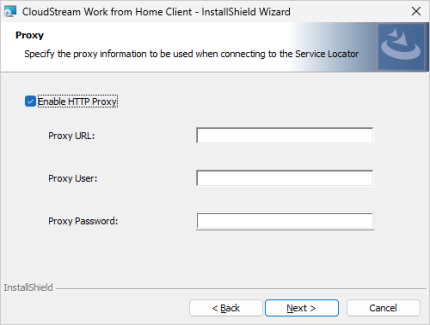
(Optional) If you want to use Proxy server, please check Enable HTTP Proxy to enter the Proxy Server information. Otherwise, leave it unchecked.
-
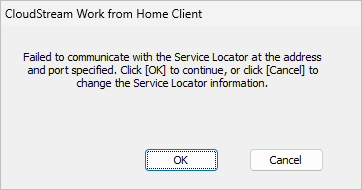
Click [Next]. The tool will connect to the Server using the information you have provided, and the result will be displayed in a pop-up dialog.
If you encounter this error, please check your previous inputs are correct. If your onboarding code is expired, please generate a new one.
-
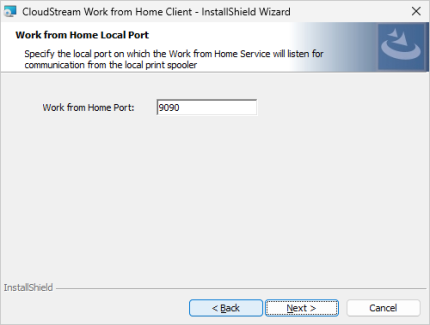
Input the Work from Home port, then click [Next]. The default is 9090.
-
Click [Install] to start the installation, and after the installation is complete, click [Finish].

Completing the installation will run the Work from Home service automatically. To check the service, open services.msc and look for Work from Home service. The service must be running to detect WfH devices.
 WfH devices must be accepted by the Administrators after discovery. WfH users must supply the correct device model name to the Administrators so that they can accept the WfH devices.
 Now that the WfH Client is up, proceed to Add Devices to WfH Client Computer.
