Deactivate or Reactivate a Device
If a device is using a available license that you prefer to allocate to another device, you can use the Deactivate feature to mark a device as unlicensed, without actually deleting the device from CloudStream. This feature removes the device from the Device list, and moves it to the Deactivated List. While in the inactive state, the device is not included in any category/group view counts and it does not consume a license.
 Deactivated devices are included in generated reports.
This option ensures that the device maintains historical data, and is available to be reactivated when necessary. Once reactivated, the device will again be automatically assigned a license, if available and will again appear in the Device List.
To deactivate a device
-
Select the device you want to deactivate in the Device List.
-
Click the
 button beside the Device List heading to view the submenu (shown below).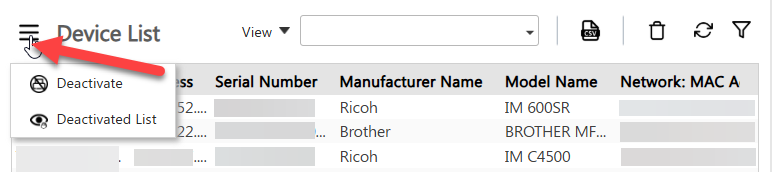
-
Select Deactivate device from the submenu.
-
In the confirmation dialog, click Yes to confirm that you want to deactivate the device.
The device is removed from the Device List and can be found in the Deactivated List.
To view the deactivated list and reactivate devices
-
Click the
button beside the Device List heading to view the submenu (shown below).
-
Select Deactivated List.
-
To reactivate a device, enable the checklist for that device, and then click Reactivate.
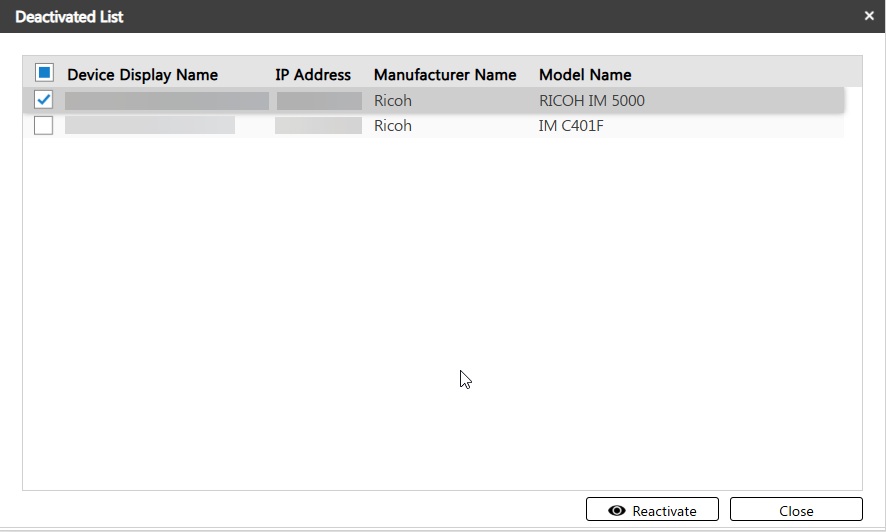
If there is a license available to assign to this device, the device is removed from the Deactivated list and you can now find it in the Device list. However if a license is not available to assign to the device, an error appear indicating an insufficient available license. You must either purchase a license, or remove/deactivate another device to reactivate device(s) as needed.
