Set Work from Home Polling
The initial WfH device state depends on the value of WfH Device Detection. To change the initial device state, do the following:
-
Login as an administrator.
-
Go to the Device Configuration section.
-
Click Polling
-
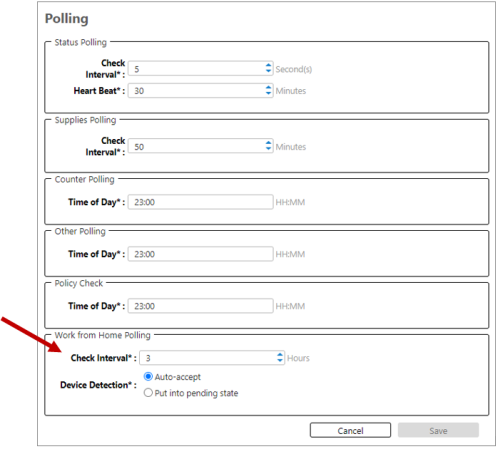
In Work from Home Polling, set the Device Detection value.
- Auto-accept: If selected, all new devices reported by a WfH Client will be automatically added as a tracked device and be in “Accepted” state. This is the default mode.
-
Put into pending state: When this mode is selected, all new devices will be put into “Pending” state and will not be tracked. You have to manually accept the devices in the Work from Home node in the Device Properties.
-
Set the Check Interval. This is the WfH device information polling interval. WfH device information is gathered every interval and posted in CloudStream DM.
The field accepts values in hours, from 1 to 24. The default value is 3 hours.
-
Click [Save].
Newly detected WfH devices will have the status you set in Device Detection. If you want to stop tracking a device, change its state to "Ignore".
