Toner / Ink Status
This displays the colors of the toner/inks and the remaining amount of each. For devices that do not support the detection of the remaining amount of toner/ink and for some monochrome MFPs, this item may be displayed as "Unknown".
The table below shows examples of how the remaining amount of toner is represented. The color of the indicator is the same as that of the corresponding toner/ink.
 The total amount of toner/ink of a specific color is divided into five partitions. Each partition covers 20% of the whole toner/ink, and it is represented by a box.
| Example toner status | Explanation |
|---|---|

|
The Black (K) toner cartridge has 80 - 100%. |

|
The Cyan (C) toner cartridge has 60 - 80% remaining. The empty box indicates that a minimum of 20% of the cyan toner has been used. |

|
The Magenta (M) toner cartridge has 40 - 60% remaining. The empty boxes indicate that a minimum of 40% of the magenta toner has been used. |

|
The Yellow (Y) toner cartridge has 20 - 40% remaining. The empty boxes indicate that a minimum of 60% of the yellow toner has been used. |

|
The Black (K) toner cartridge has 0 - 20% remaining. The empty boxes indicate that a minimum of 80% of the black toner has been used. |

|
Running out of toner/ink. |

|
Out of toner/ink. |
 Unknown Unknown |
Remaining toner is unknown. |
|
OK |
The toner level cannot be obtained for the device, but it’s not low or empty. |
A sample screenshot of Toner/Ink status is displayed below.
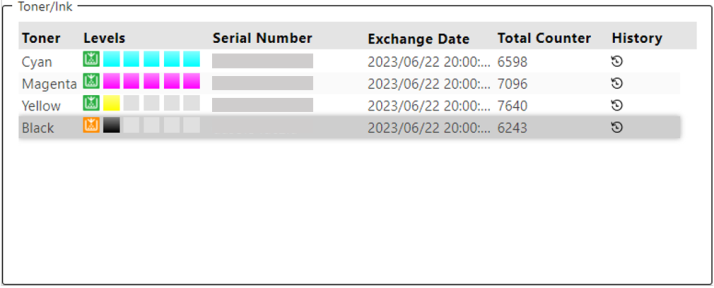
As you can see in the above example, each color has a History icon  . When you click this icon, the toner history dialog will display.
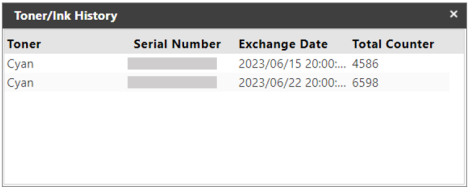
The dialog displays the history of toner cartridge replacement. You can find the date and time the cartridges were replaced, including the serial number and the total number of pages printed before the cartridge was replaced.
