License Management
The License Management page allows you to view activated licenses, delete expired licenses, and monitor the number of licenses used by your devices. Options and features on this page are described within this topic.
The License Summary page allows you to view a summary of all activated licenses. Refer to License Summary for details.
RICOH CloudStream supports the following types of licenses.
-
RICOH CloudStream Device Management license - With this type of license, you can add devices to CloudStream DM, including Work from Home devices. You can assign policies and send configuration tasks to the devices.
This type of license is displayed in the CloudStream DM's License Management.
-
RICOH CloudStream Print&Scan license - With this license, you can use the RICOH CloudStream Print&Scan embedded application for secure printing and scanning.
This type of license is not displayed in License Management. However, you can manage them in the RICOH CloudStream Print&Scan' Portal. To access the portal, refer to Print and Scan.
You can find the following instructions to manage your licenses.
|
Helps you monitor the expiration and availability of your regular and extended licenses. |
|
Shows you the list of licenses that will be used for extending the expiration date of your existing regular licenses. |
|
Helps you remove licenses that are already expired. |
|
Shows your Tenant ID or Customer ID. |
 Set the License Expiry Notification feature to notify you when a license is about to expire. Configure the settings in Email Server Settings.
Check Available Licenses
The Ricoh team will activate your product key after purchasing a RICOH CloudStream Device Management license. You will find three tables on the License Management page.
|
Tables |
Description |
|---|---|
|
Activated Licenses |
All active licenses are displayed here. Please regularly check the expiration of each license.
|
|
Licenses for Extension |
These are licenses that extend the expiration date of the existing(regular) license. When a regular license expires and there is a matching license for extension available, the regular license's expiration date is extended by using the license for extension. Go to Extend License Expiration. |
|
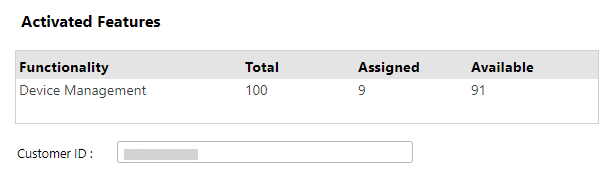
Activated Features |
With the license, CloudStream DM can manage, monitor, and configure devices. This table displays the available units for each type of license. License units are randomly assigned to the devices, and all available units are displayed here. |
 If a license is not extended after it expired, the number of available units will decrease, affecting the functionality available.
You must have enough available RICOH CloudStream Device Management license before you add new devices to CloudStream DM.
Similarly, you must have enough RICOH CloudStream Print&Scan license before you deploy RICOH CloudStream Print&Scan embedded application to the devices.
Extend License Expiration
As long as you have the license to extend the regular license, then you do not need to worry about extending your license for the extension will happen automatically.
To understand how the licenses are extended, please read the following information.
-
The number of units of a regular license (license displayed in Activated Licenses table) must match any license in the License for Extension table.
For example:
Activated Licenses:
-
License A with 1000 units
-
License B with 2000 units
License for Extension table:
-
License E1 with 1000 units period of 6 months
-
License E2 with 1000 units period of 1 year
Scenario
Result
Reason
If License B expires
License B is not extended and expired.
The regular license's units should match to license for extension units.
In the above example, both extension licenses (E1 and E2) are of 1000 units, and License B requires 2000 units.
If License A expires
License E2 is used.
License A expiration date is extended to 1 year.
The system will use the license with the longest period.
-
-
When an extension license is used, it will be shown in grey text and listed at the bottom of the list. You can click [Delete Used] button to remove the used licenses.
Delete Expired License
A license can only be deleted the day after it has passed the expiry date.
An expired license will have an expired indicator  beside the product key.
All expired licenses in the list will be deleted when you click the [Delete Expired] button.
-
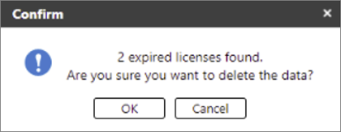
If there is at least one expired license in the list, a pop-up dialog will display showing the number of expired licenses about to be deleted. Click [OK] on the dialog to remove the expired licenses. An example is shown below.
-
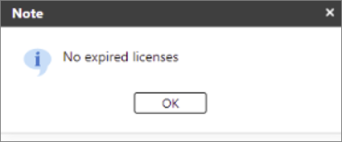
If no expired licenses are in the list when the [Delete Expired] button is clicked, the following message will be displayed.
Expired Licenses
When a license expires, the number of units in the Available column in Activated Feature table will decrease based on the license's total number of units.
An expired license will remain on the list until removed.
The license will expire the day after the expiry date. If the expiry date is the 1st of January 2025, the license will become unusable on the 2nd of January 2025.
Customer ID
The customer ID is required when you contact Ricoh support.
You can find your Customer ID in License Management.
-
Login as an administrator.
-
Go to the System section.
-
Expand Server Settings and click on License Management.
-
Scroll down to view your Customer ID shown beneath the Activated Features section.