DM Agent Troubleshooting
Quick Links
| SOP Panel Error Messages. |
| Re-install DM Agent application. |
| Check device account settings. |
| Devices are supported, and firmware is updated. |
If an error occurs during the DM Agent start-up process on a device, the error information is displayed on the SOP Panel, as shown in the panel capture below. Text appears in this location only when an error must be resolved.
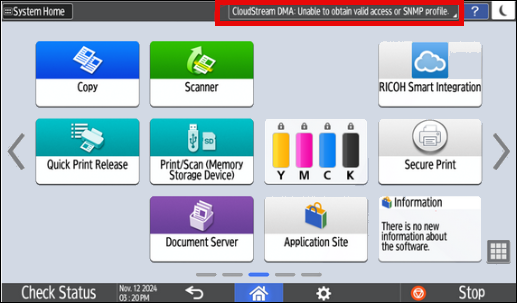
Refer to the table below for possible error messages and resolutions.
|
Error Message |
Cause/Resolution |
|---|---|
| Device information retrieval failed |
DM Agent cannot get device information from the device. such as Serial Number, IP address, model name, etc. To resolve, reboot the device or re-install the application (see below) and then reboot the device. |
| Unable to obtain valid access or SNMP profile |
DM Agent cannot find the correct access or SNMP profile. To resolve, create at least one correct device access profile and SNMP profile in CloudStream that matches the access profiles in the device. |
| Action failed during initialization |
DM Agent failed to get Device information in all retry attempts. To resolve, reboot the device or check the CloudStream server error. |
| Initialization failed due to certificate error |
A client certificate error has occurred. To resolve, use the Deployment Tool to re-install the DM Agent application and create a new client certificate. |
| Initialization failed due to JSON error |
The response from the server could not be parsed, which means that the Server returned the incorrect format JSON string to the DM Agent and it cannot be read. Contact your Ricoh Support Team for assistance. |
| Initialization failed due to server response error |
The server either did not return a response or returned an error. Contact your Ricoh Support Team for assistance. |
|
Initialization failed due to Kerberos error |
This message only appears if using a Kerberos proxy and indicates that the DM Agent failed to configure the Kerberos service on the device. To resolve, configure the Kerberos Proxy to correct the settings. |
Re-install DM Agent application.
-
Run an Uninstall action on devices. Please see Uninstall or Upgrade DM Agent.
-
(Optional) Restart the devices.
-
Run DM Agent installation action to devices. Please see Add Devices to CloudStream DM.
-
Before installing again, please ensure the DM Agent application is uninstalled. You can check if the DM Agent application is installed on the device by going to its Web Image Monitor (WIM).
-
Make sure to input the correct credentials in Connection Settings. If the DM Agent onboarding code already expired, generate a new one here Generate Onboarding Codes.
-
Check device account settings.
When you identify the target devices, please make sure the following conditions are met.
-
The device's local admin matches the application's device administrator account. Please see Device Administrator Access Profile.
-
The device's SNMP configuration matches the application's SNMP account. Please see SNMP Access Profile.
-
The device's SDK/J Platform matches the application's SDK/J account. Please see SDK/J Platform Access Profile.
-
No DM Agent application is installed on the device. Uninstall the DM Agent first before installing again.
Devices are supported, and firmware is updated.
DM Agent supports a list of Ricoh devices; please check the list in Supported Printers.
Please make sure the devices' firmware is updated to the latest firmware version.
