Uninstall or Upgrade DM Agent
Uninstall DM Agent
This operation will uninstall the DM Agent application from the target device.
 When the DM Agent application is uninstalled from the device, the license assigned to the device will be released back to the available number of Device Management licenses.
| Prerequisites |
|---|
| Target devices are connected to the same network where the DM Agent Deployment Tool is running. Please find the list of supported model names in Supported Printers. |
The overall flow of uninstalling DM Agent is listed below.
| Order | Instructions |
|---|---|

|
Select Uninstall DM Agent as action. Please see instructions below. |

|
DM Agent Network Range List |

|
DM Agent Update and Install |

|
(Optional) DM Agent Summary |
 If the device does not have the DM Agent application installed, it will just skip the process. Please check the logs for details.
-
From your window's taskbar search box, search for DM Agent Deployment Tool.

-
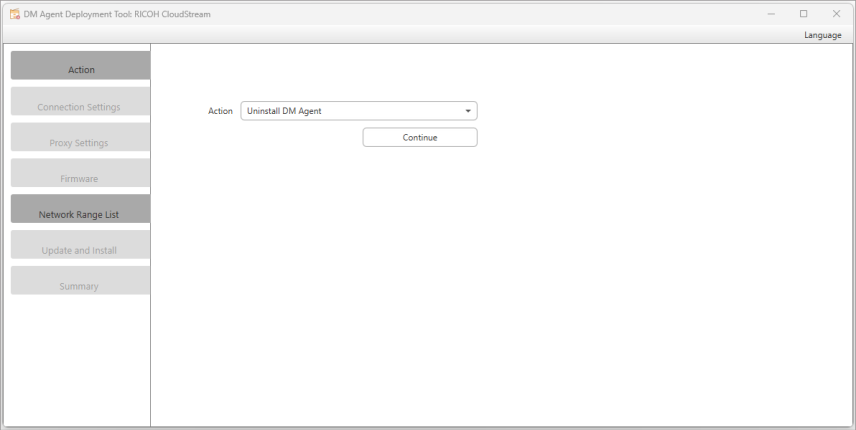
Click on the tool and the following application is displayed like the image below.
-
Select Uninstall DM Agent as Action.
-
Click [Continue].
Upgrade the DM Agent Deployment Tool
If you need to upgrade the DM Agent Deployment Tool to version 1.7.0 or later, an Administrator must uninstall the current version before individual users can begin installing DM Agent Deployment Tool 1.7.0 or later. As of version 1.7.0, Administrator privileges are not required to perform the install; however version 1.6.0 and earlier require Administrator access to uninstall.
If the earlier version is not uninstalled first, it will not interfere with a user installing and using version 1.7.0; however, both versions are listed in Programs and Features for the logged in user.
The simplest method to perform an upgrade is to launch a newer version of the DM Agent Deployment Tool. From the Action List, select Install DM Agent. Choose the devices with an older version of the DM Agent that you want to update. You will not need to provide the onboarding code using this method.

