Register a Card in MFP
If your account is registered in CloudStream DM, you can register your access cards so you can just tap your card to the MFP's card reader to authenticate.
| Prerequisites |
|---|
|
Before you can register your card, please make sure that device displays the card icon indicating that it allows card login.
|
| The MFP has a configured and attached card reader. A card reader is where your tap your card so you can authenticate and login to the MFP. |
| The MFP has RICOH CloudStream Print&Scan embedded installed. To install the required embedded, refer to Install Print&Scan Embedded App. |
 The display in the login screen depends on how the embedded client is configured. To allow card login, the embedded client must have Card Swipe Login as the login type. For more details, please refer to
 -
Go to a Ricoh device with RICOH CloudStream Print&Scan embedded installed.
 Card registration happens in the login screen. You must log out from the MFP if you plan to register a card.
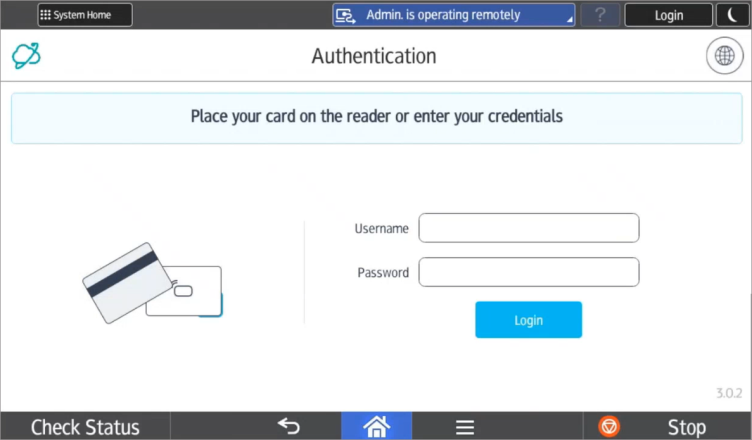
A device with Print&Scan embedded will display a screen similar to the image below.
-
Tap your card to the card reader.
If the card went through without asking for credentials, this means that the card is already registered to the CloudStream DM.
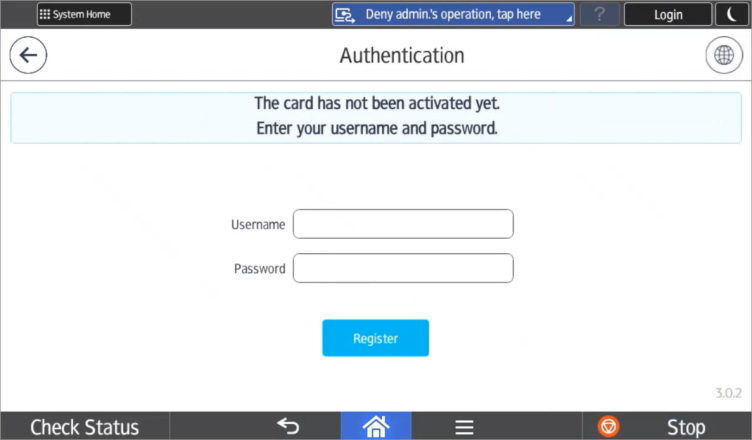
If the card is not recognized by CloudStream DM, you will be asked to register it under your account.
-
Enter your username including the domain name. For example, myaccount@oidcdomain.com.
-
Enter your password or OTP.
-
If your account is an OIDC, you must use the OTP sent to you as password. To generate the OTP, refer to Register an OIDC User for instructions. Note that, by following the steps, you are not re-registering your account, you are simply generating an OTP.
-
If your account is an LDAP, enter your LDAP password.
-
-
Tap [Register].
You can register as many access cards to your account by repeating the same steps.
To remove a card from your account, you must contact your Administrator and request them to remove the card from your account.
