Run a Report Immediately
Reports are generated when a report template is executed via a schedule or running it immediately.
|
Run report immediately |
Represented by icon Use this to generate a report right away. The contents of the report will be based on the current data held for the selected parameters. Please see Run and Export a Report. |
|
Run on schedule |
Represented by icon Use this to create a report task. With this feature, you can schedule a report to be generated and sent to recipients once or on a daily, weekly, or monthly basis. Please see Run a Report on Schedule. |

Run and Export a Report
If you plan to generate a report immediately, the Run Immediately function generates a report and displays it on the screen. From there, you can save the report in CSV, PDF, or Excel file format.
 Refer to Reports for the list of reports you can generate immediately.
To generate a report immediately, follow the steps below.
-
Login as an admin with reports privileges.
-
Go to the Reports section.
-
Expand Report Templates.
-
Select a Report Category. Report templates are categorized based on their purpose.
-
From the list of report templates, select the report template you want to generate a report with.
-
Click
 [Run Immediately].
 -
A dialog "Run now" is displayed. Specify the correct parameters of your report. Refer to Report Parameter in Parts of a Report Template page for more details.
-
Click [OK].
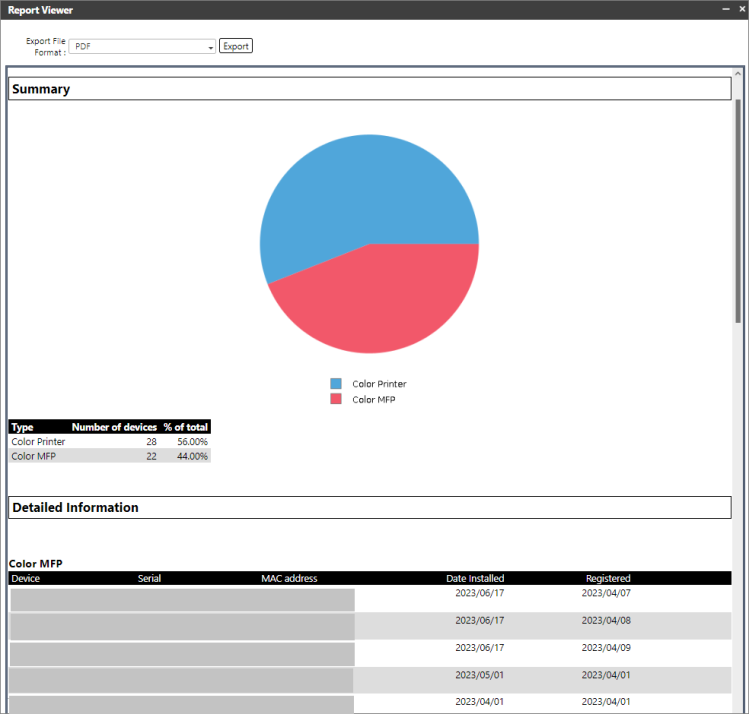
The report is generated and displayed on the screen similar to the sample image below.
-
In the top left area, you can find the setting Export File Format. Select the file format. Available options are PDF, CSV, and Excel.
-
Click [Export].
-
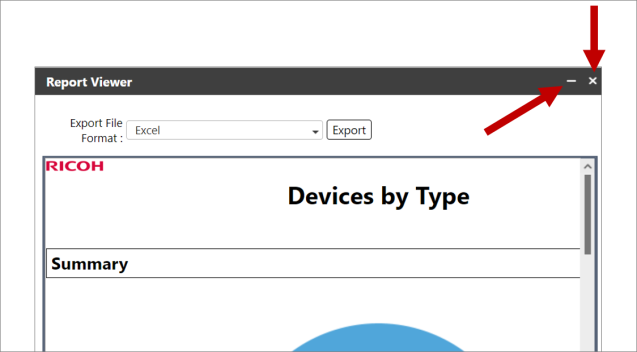
Click - icon to minimize the report view or x icon to close the view.