Create a Device Policy
All three types of device policies require at least one template and one device or group.
This topic will cover the common steps to create a device policy. Before you begin, please be informed of the following:
-
A Configuration Policy uses device preferences template. Create this type of template if you would like to implement a policy that checks the device compliance to the configured SDP or XDP template.
-
A Firmware Policy uses only the Firmware Template. Create this type of policy if you would like to check the device's firmware version is the same as the template you configured. If the device's firmware version is not the same, the firmware will be updated. The policy compliance checking happens every day.
-
The Embedded Policy uses only the Embedded Application. Create this type of policy to make sure the device's embedded application version complies to the set embedded template.
 All policies will be applied to the target devices every day at the time set in Policy Check polling. For example, the device's settings, embedded version, and firmware version changed policies will all run and apply the settings back to the defined configurations. For more details, please see Device Polling.
| Prerequisites |
|---|
| If you would like to select target groups for the policy, please select the group in the Display Settings. Go to Target Device Association Category and choose the group you would want to display in the Device Policies device selection. |
The following steps are applicable to all three types of policies. Please follow the instructions to create a device policy.
| Order | Instructions |
|---|---|

|
Enter the name of the device policy and select the enforcement type. |

|
Select a template or multiple templates for configuration policy. |

|
Add target devices or groups. Users can select devices and groups. |
-
Login as an administrator.
-
Go to Device Configuration, then expand Device Policies.
-
Select the type of policy you will create.
-
If you want to create a configuration policy, click Configuration Policies.
-
If you want to create a firmware policy, click Firmware Policies.
-
If you want to create an embedded policy, click Embedded Policies.
-
-
In the policy you selected, click [Add].
-
Enter the name of the policy. The policy name must not be a duplicate of the existing policy. Optionally, enter a description of the policy.
-
Select the Enforcement Type.
Enforcement Type
Description
Check
A “Check” enforcement type will compare the settings in the template to the target devices' values. You can see the result in the activity log found in device properties.
Apply
An “Apply” enforcement type will compare the template settings to the target device's values. Settings that do not match will be applied to the target devices. You can see the result in the activity log found in device properties.
Devices may reboot one or more times depending on the applied settings.
Disabled
Select this type if you want to disable a policy. A policy that is disabled will not be executed during policy check.
-
Click [Save].
Please click [Save] button before going to the Templates and Target Devices node. If your policy is not saved, then you cannot add template and target devices.
- Open the Template node.
- Click [Select Target Template].
For configuration policy, the following will be displayed.
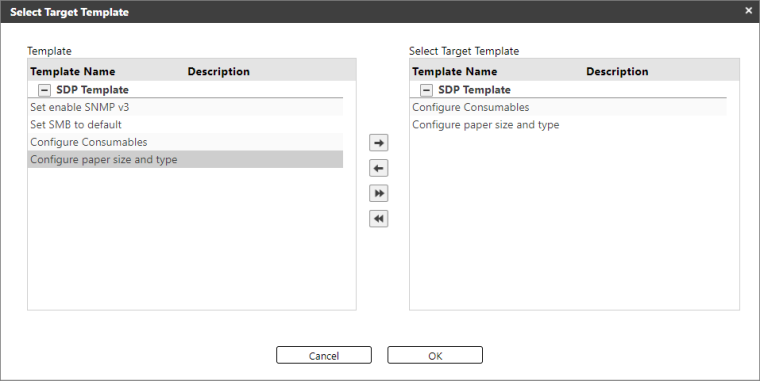
From the left-hand side, the Template pane lists all the available configuration templates. Select one or more templates, then click the right arrow button
 to add the template to the Target Templates pane.
  Please note that only the templates listed in the Target Templates pane will be added to the policy.
Button
Function
Adds the selected template(s) to the Target Templates pane.

Removes the selected template from the Target Templates pane.

Adds all templates from Available Templates to the Target Templates pane.

Removes all templates from Target Templates.
OK
Closes the "Select Target Template" dialog, and the templates listed in the Target Templates pane are then displayed in a list with their template name and description.
When clicked an error message will display if the Target Templates pane is empty.
Cancel
Cancels the selection of the templates.
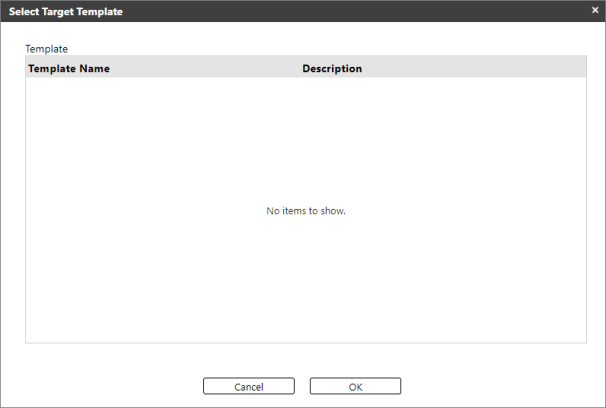
For Embedded and Firmware policy, the following will be displayed.
Please select a template from the list and click [OK].
- Click [Save]. You must save the templates selected before going to the next step.
- Open Target Devices/Groups and add devices or groups.
To do so, you can use the two buttons below to populate the target devices and groups list.
Button
Function
Add Target Group
Clicking this button will display the "Target Groups" dialog.
If there are no available groups, please select the Target Device Association Category in Display Settings.The dialog contains the Available Groups pane and the Target Groups pane.
The list of Available Groups is based on the Device List groups configuration, whose defaults are Host Name, IP Address, and Models group. Customized groups are also displayed and can be selected as a target group.
Like the Template step, move the device groups from Available Groups to the Target Groups pane by clicking the
button. If you want to select all devices, you can check the All Devices box. Checking this box will add all the devices and or groups to the target devices/groups.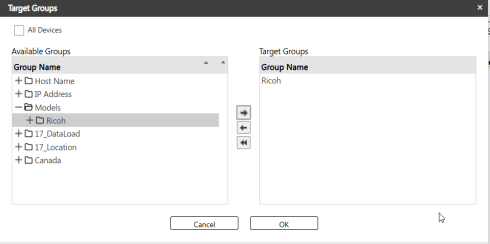
Add Target Device
Clicking this button will display the "Select Target Devices" pop-up dialog.
The dialog contains the Available Devices pane and the Target Devices pane.
Like the Template step, use the
button to move devices from Available Devices to the Target Devices pane.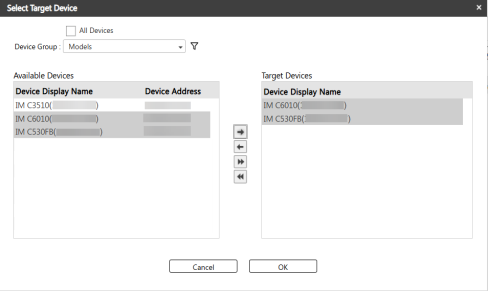
Filter Devices
For easier selection, use the filter to search for the devices you want to add to the Target Devices pane.
Select a device group.
Click the
 icon and enter the display name or the device's IP address into its corresponding column.
Click the bottom
 icon, or just press enter from your keyboard.
Devices that match the search will be displayed in the Available Devices pane. Select the device from the list.
Click the
button.
You can also perform filtering from the Available Devices pane.
If you want to select all devices, you can check the All Devices box. Checking this box will add all the devices and or groups to the target devices/groups.
- Click [OK] to add the devices/groups to the list.
You may use the following buttons to remove devices or groups from the list.
|
Button |
Function |
|---|---|
|
Delete |
Removes the selected device or group from the list grid. You can also remove devices if you open the "Select Target Devices" dialog and remove the devices from the Target Devices pane. You can do the same in groups too. |
|
Delete All |
Removes all the devices and groups. |
