Standard Device Preferences (SDP)
This template is helpful in updating general setting items that do not depend on the model. Secure information such as passwords and SNMP community names cannot be obtained when the settings are retrieved from the device. The categories of the setting items that can be edited are displayed on the left side of the screen. Select a category to display the screen for editing the setting on the right side of the screen.
| General | Authentication |
| Date and Time | Service and Consumables |
| Smart Operation Panel | Printer |
| Network Protocols | Security |
| TCP/IP | Interface |
| SNMP | Power |
| Administrator | Device Functions |
| Web Browser |
Before applying SDP settings to devices, please read the Standard Device Preferences (SDP) Limitations for the list of settings that are not supported by CloudStream DM.
The table below lists the methods to create a Standard Device Preferences template.
|
Methods |
Description |
|---|---|
|
Create a blank template, and individually select all settings manually. |
|
|
Get settings from an existing Ricoh device, which imports all the settings, and you can make changes after the import. |
|
|
Import a CSV file that contains the standard settings. |
|
|
Duplicate a template and use it as the basis for a new template. |
One important step that is common to all methods is setting up the template. To move settings to the template, please go to Add SDP Device Preferences.
To export an SDP template to a CSV, please go here Export SDP Template.
Create a Blank Template
Follow these instructions to create a blank template.
-
Login as an administrator.
-
Go to the Device Configuration section.
-
Expand Device Configuration Template and click on Standard Device Preferences.
-
Click [Add].
-
Enter a name for the template, and optionally add a description that can help you identify the template's contents.
-
Select the Create Blank Template as Option.
-
Click OK to create the template.
The template is created with empty values in the device preferences.

Get Settings from Device
Obtain the resource settings from a device added to CloudStream DM. Follow the steps to get the settings from a device.
-
Login as an administrator.
-
Go to the Device Configuration section.
-
Expand Device Configuration Template and click on Standard Device Preferences.
-
Click Add.
-
Enter a name for the template, and optionally add a description that can help you identify the template's contents.
-
Select Get Settings from Device as Option.
-
Another set of fields appears on the screen to allow you to select the device. Click [Select Device].
-
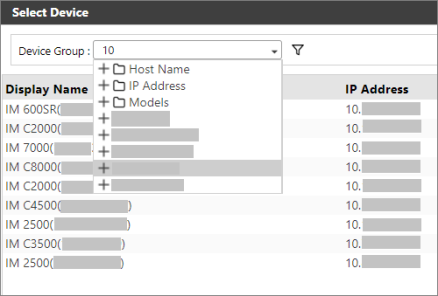
In the dialog, select a device group to display the devices within the group.
-
Select a device from the list.
You can also click the filter button to display the display box. Input the device's IP Address, or display name, then click search. This will search for the device that matches the search text.
-
When a device is selected, click [OK].
 Only one device can be selected as the source device. The WfH devices group will not be displayed; thus, WfH device cannot be selected as the source device.
 -
Click [OK] to create the template.
A template is created with the settings and values copied from the actual device that you selected.
Import a Template
You can import a CSV file to create a template.
Additionally, you can generate the CSV file by exporting a template from the same SDP screen. You can find the instructions to export the template in Export SDP Template.
To import a CSV file into a template, follow the steps below:
-
Login as an administrator.
-
Go to the Device Configuration section.
-
Expand Device Configuration Template and click on Standard Device Preferences.
-
Click [Add].
-
Enter a name for the template, and optionally add a description that can help you identify the template's contents.
-
Select Import Settings from File as Option.
-
Click [Choose file].
-
Select a valid CSV file.
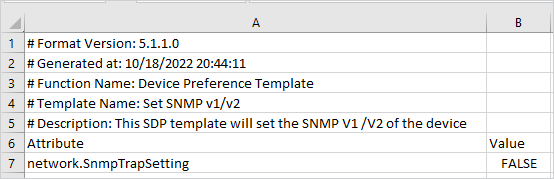
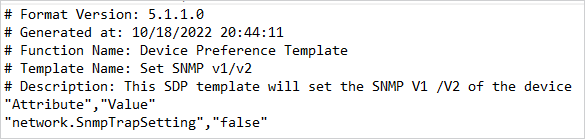
The selected CSV file must have a similar format to the example below.
Opened from Excel:
Opened from notepad:
-
Once a valid file is selected, click the [OK] button to create the template from the imported file.
Duplicate a Template
Create a copy of another template and rename it before you modify the preferences as needed. Suppose a template contains settings that are a very close match to the settings you need. In that case, you can easily copy the template, make minor modifications, and then add the modified template to a configuration task.
-
Login as an administrator.
-
Go to the Device Configuration section.
-
Expand Device Configuration Template and click on Standard Device Preferences.
-
Select an existing template, then click [Duplicate].
-
(Optional) Open the new template and change the name and description. The duplicate copy will keep the original name with a suffix.
-
Make necessary modifications to the device preferences area. Please see Add SDP Device Preferences.
-
Click [Save].
