Update Firmware
This operation will upgrade the firmware of the target device.
| Prerequisites |
|---|
| Install the tool in DM Agent Deployment Tool Installation. |
| Target devices are connected to the same network where the DM Agent Deployment Tool is running. Please find the list of supported model names in Supported Printers. |
| The Firmware update process uses FTP to send the firmware file to the device. Therefore, FTP must be activated on the device. |
The overall flow of updating the firmware is listed below.
| Order | Instructions |
|---|---|

|
Select Update Firmware as action. Please see instructions below. |

|
DM Agent Network Range List |

|
DM Agent Update and Install |

|
(Optional) DM Agent Summary |
 If the device does not have the DM Agent application installed, it will just skip the process. Please check the logs for details.
-
From your window's taskbar search box, search for DM Agent Deployment Tool.

-
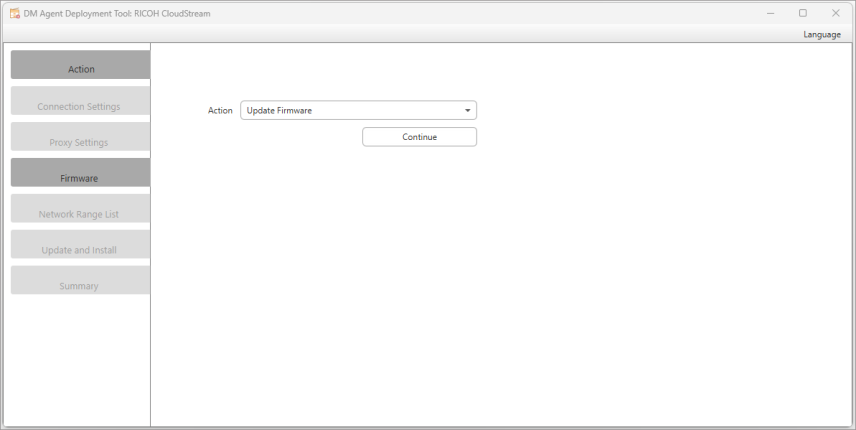
Click on the tool and the following application is displayed like the image below.
-
Select Update Firmware as Action.
-
Click [Continue].
-
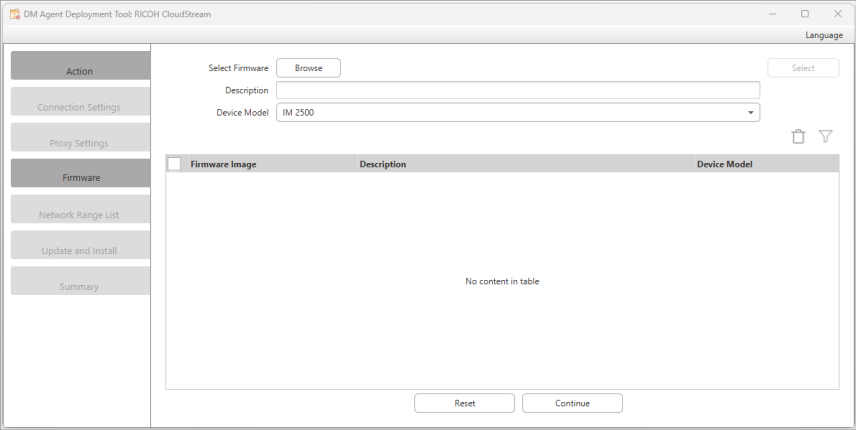
On the Firmware screen, click the [Browse] button.
-
Choose a file in .pkg or .zip file type.
-
(Optional) Add a description of the firmware.
-
Select the Device Model. For the list of models, please refer to Supported Printers.
-
Click [Select].
If the same device model is selected for another firmware, an error is shown with two options:
-
Cancel the operation by closing the error pop-up and selecting another device model.
-
Replace the device model with the selected firmware.
The firmware will be uploaded to the file to the repository and display it in the list grid.
-
-
Upload as many packages as you want. After that, click [Continue].

