Edit User Properties
All users registered to RICOH CloudStream Device Management (DM) are displayed in the Users List. Go to the User Management section and click Users to see the list.
You can find the following information in the list.
|
Column Header |
Description |
|---|---|
|
User Name |
The user name that was used to register for CloudStream DM. |
|
Authentication Profile |
The Authentication Profile used during user registration.
|
|
Display Name |
The name of the users. This information is retrieved from the authentication provider. |
|
|
The email address of the user. |
|
Update By |
Initially, the user is registered by a CloudStream service. When an administrator changes the user's PIN, card assignment, or deletes and restores the user account, Update By Column will change to the login administrator's user name. |
|
Update Date |
The date and time the update has been made. |
|
User Home Folder |
Displays the user's home folder. |
|
Department Name |
Displays the department the user belongs to. |
|
User Language |
Displays the language set for the user. |
 User Home Folder, Department Name, and User Language are initially not displayed in the columns. To display these columns, please right-click on the column header and select Columns, from there, click the columns you want to see in the table.
This topic covers the following:
| Change User PIN. |
| Assign a Card. |
| Delete a User. |
Change User PIN
-
Login as an administrator.
-
Go to User Management section.
-
Click Users.
-
Select a user you want to edit.
-
In the User Properties, click Change User PIN.
-
A dialog showing the user's new PIN is displayed, please make sure to copy the user's PIN before closing the dialog because once you close it, the user's PIN cannot be viewed again.
Alternatively, you can set up an automatic email option, so the users will receive an email containing their new PIN whenever their PIN changes, to do this please go to Configure User PIN.
-
Click [OK].
The user's PIN has been generated and the user can start logging in to MFP using a PIN.
The generated PIN is unique for each user, and it is displayed as masked in the User PIN field.
Assign a Card
-
Login as an administrator.
-
Go to User Management section.
-
Click Users.
-
Select a user you want to edit.
-
In the User Properties, expand Cards.
When users register their card from the MFP, the card's information will be added in the user's card list. -
Click [Add]. A dialog will display, showing all the registered cards. If you still need to register the cards, register them in Register Cards.
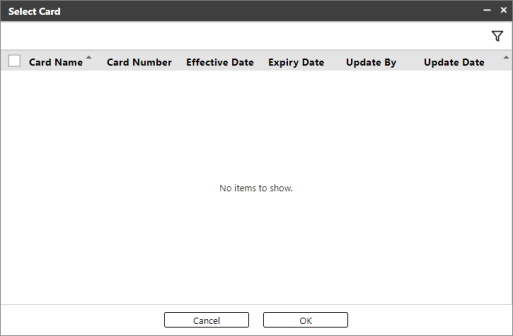
Item
Description
Card Name
The name of the card.
Card Number
Displays the Card Number.
Effective Date
Displays the start date to use the card.
Expiry Date
Displays the date the card becomes unusable.
Update By
The administrator who updated the card's information.
Update Date
The date and time the administrator updated the card's information.
-
Check a card or multiple cards that you want to assign to the user. You can also select all cards by clicking the checkbox on the column header.
-
After selecting a card(s), click [OK].
The cards you selected for the user are displayed in the list and they can use their card to login to Ricoh MFP.
Delete a User
 You can only delete accounts that are not associated with a card.
 The User screen indicates users that have previously logged into CloudStream. If you prefer to Delete user accounts, you can select one or more accounts, and then click [Delete] to remove the accounts.
If the user is associated with a card, a warning message indicates that the user cannot be deleted. You must un-assign the card from the user account before you can proceed.
A confirmation message will prompt you to confirm the deletion. The users are not fully deleted until purged, but they are hidden from Groups/Departments screens.
Purge or Restore Users
To view a list of all previously Deleted users, click [View Deleted]. From this screen, you can select one or more users and either [Restore] the accounts, or [Purge] them entirely from CloudStream.
If a user has not been purged, you can click [Restore] to re-enable their access.
If you proceed to purge, the user name will continue to appear in CloudStream with two exceptions:
-
Generated reports that include configurable fields such as User ID and User Name will display these fields as Unknown.
-
The Print Job Activity dashboard will list "Unknown" instead of the User Name.
Purged users cannot login to CloudStream. However, note that if the user account still exists in LDAP or Entra ID, the user can login again to be added as a new user.
