Register an LDAP User
 LDAP users can only register their accounts to an MFP with RICOH CloudStream Print&Scan embedded installed.
Register to RICOH CloudStream Device Management (DM) by logging to the MFP using your LDAP account. Below are the steps to register your LDAP account to CloudStream DM.
-
Go to a Ricoh device with RICOH CloudStream Print&Scan embedded installed.
A device with Print&Scan embedded will display a screen similar to the image below.
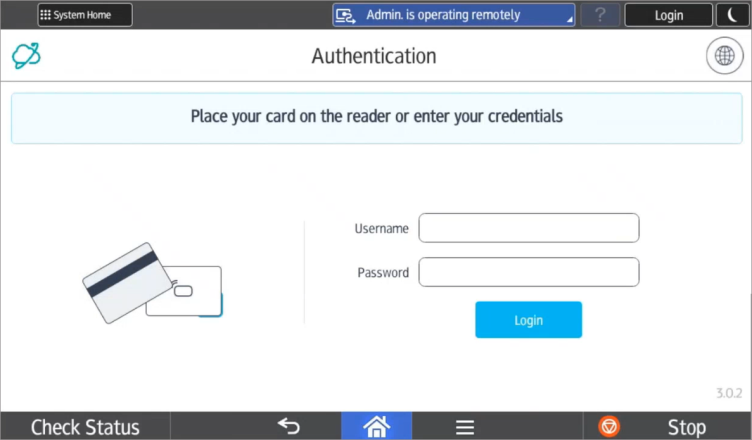 The display in the login screen depends on how the embedded client is configured. To allow LDAP login, the embedded client must have Username and Password Login as the login type.
-
Enter your LDAP username including the domain name. For example, myaccount@ldapdomain.com
-
Enter your password and tap the [Login] button.
Successful login will register your account to CloudStream DM. The MFP will also display the RICOH CloudStream Print&Scan My quick actions screen.
When your LDAP account is registered to CloudStream DM, you can start registering your access cards so you can login by tapping your card into the MFP's card reader. Alternatively, the CloudStream DM administrator can generate a user PIN that you can use to login to the MFP. Note that the card login or the PIN login must be enabled in the embedded client configuration.
To know more about card registration, refer to Register a Card in MFP.
