Select Alert Triggers
-
Login as an administrator.
-
Go to System and click Alert Policies.
-
Click [Add].
-
Enter the Policy Name. The name should not be a duplicate of any existing policies.
-
Identify the triggers. You can check multiple triggers. Please see the list below.
Errors
Warnings
- Select All (if selected, all items are selected automatically.)
- No Toner/Ink
- Paper Misfeed
- Call Service
- Cover Open
- Device Access Violation
- No Paper
- No Response
- Original Misfeed: ADF
- Fax Transmission
- Error
- Select All (if selected, all items are selected automatically.)
- Offline
- Toner/Ink Almost Empty
- Alert
- Replace/Supply
- Maintenance
- Busy
- Almost Out of Paper
- Energy Saver Mode
- Warming Up
-
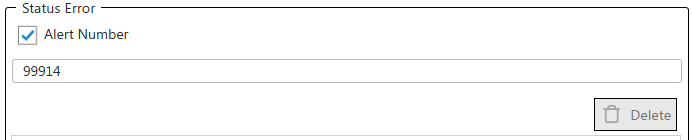
Enable a Status Error. You can enter one or more status codes to trigger the alert. A notification will be sent when the specified Alert Number appears in the Printer Status Detail. For example, to trigger an alert for "replace WT Box", enable the Alert Number checkbox, and then enter '99914'. If you enter multiple Alert Numbers, a trigger is thrown when any one of the codes match. Please set only ONE Alert Number or ONE Toner Level per Alert Policy, because emails with a supply-specific email subject should be sent to integrate with the MPS order system. Refer to Alert Policy for Brother Consumables for more information about using this field.
- Click [Save].

