Configure a Report Task
A Create New Report Task dialog is displayed when running a report on a schedule.
Follow the steps below to schedule a report.
| Order | Instructions |
|---|---|

|
General. |

|
Parameters. |

|
Delivery Method. |

|
Schedule. |
-
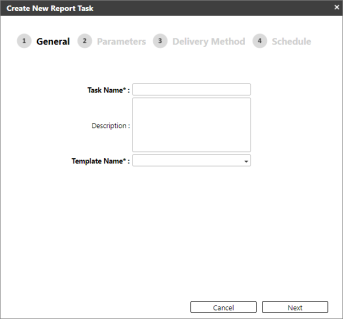
Enter the name of the task. The name must not be a duplicate of an existing task in the list.
-
(Optional) Enter a description of the report task.
-
Select the template you want to use to schedule a report.
-
If creating a task from a template, the template name will be the base template and it cannot be edited from the dialog. To change the template, you must close the dialog and select the other template.
-
If creating a task from the Report Tasks screen, you must select a template from the list.
-
-
Click [Next] to set the Parameters.
-
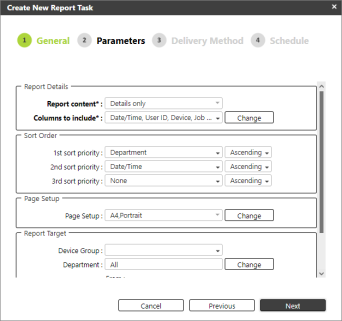
Select the parameters of the report. Required fields must not be empty. Refer to Report Parameters section in Parts of a Report Template.
-
Click [Next] to set the Delivery Method.
-
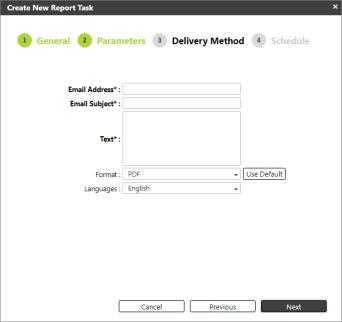
Enter the recipient's email address. You can enter multiple email addresses separated by a semi-colon.
-
Enter the Email Subject.
-
Enter the body of the email. The recipients will receive an email with the report. Make sure to write an email body describing the type of report attached.
-
Select how the report will be formatted. By default, PDF is selected, but you can select CSV, HTML, or Excel. Or click the [Use Default] button to use the default file format of PDF.
Format Description Remarks PDF Outputs the report in PDF (Adobe Portable Document Format) file format.
Use Adobe Acrobat or another PDF viewer to open the report file.
When you output a report with information using conditions based on device groups or devices, PDF bookmarks are created with selected conditions (device group name, device name, etc.).
CSV Outputs the report in CSV (Comma Separated Value) file format.
The following character codes are used in the CSV files:
-
Japanese: Shift-JIS
-
Chinese (Traditional): GB18030
-
Other: Windows Latin 1
The first line of the table shows the titles of each item.
Excel Outputs the report in Excel (Microsoft Excel Spreadsheet) file format.
Use Microsoft Excel 2007, 2010, 2013, 2016 or another application that supports Excel files to open the report file.
The chart in the Excel file will be a static image.
When a value in a table is changed, the corresponding Excel graph is updated.
The layouts of the report displayed in the system and Excel file report may be different.
-
-
Select the language of the report. By default, the language will be English, but you can select other languages such as:
-
Français
-
Deutsch
-
Italiano
-
Español
-
Nederlands
-
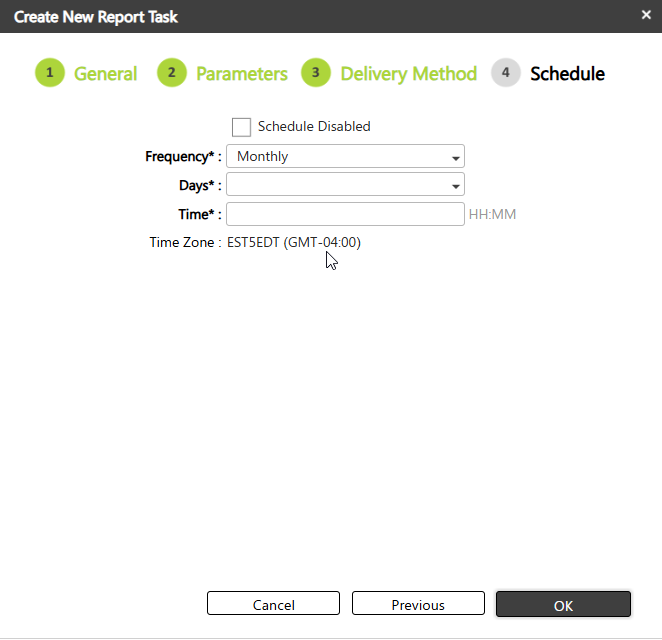
Checking the "Schedule Disabled" setting will create the report task but no report will be generated.
 A report task will only generate the report if the schedule is enabled.
To set the schedule, make sure the Schedule Disabled option is unchecked, only then will the report schedule options be displayed.
Select a value for Frequency. Available options are:
| Frequency | Description | Example |
|---|---|---|
| Monthly |
This is the default option. If selected, a report is generated and sent to recipients every month.
|
Input:
Result: The task will run on May 20, then run on June 1st and continue to run every month until the report is disabled. |
| Once |
This will generate a report and send it to recipients based on the set Date and Time.
|
Input:
Result: A report is generated on June 3rd at 10:00 AM, then sent to recipients. The task will run once and will remain in the Report Task list. |
| Daily |
This will generate a report and send it to recipients daily.
|
Input:
Result: A report is generated every 09:00 daily, then sends it to recipients. |
| Weekly |
This will generate a report and send it to recipients weekly.
|
Input:
Result: A report is generated every Monday and Friday at 16:00, then sends it to recipients. |
|
Timezone |
Displays the client configured time zone. |
The timezone displayed is based on the timezone configured for your customer account. |
Click [OK] to create the report task. Once a scheduled report is created, you can see the task in the Report Task page. Please check Manage Report Tasks for more details.
When a scheduled task is run, the log is created in the Report Log. Refer to System Logs for details.
