Create Custom Report Template
A customized report template is based on a standard report template. In a standard report template, all settings are fixed and cannot be modified, while in a customized report template, you can set which items in the report will be included and how the report will look.
Important notes when creating a custom report template.
-
To specify report generation date, closing day, start date, and end date, see for examples in Examples of Reports Date Range.
-
Depending on the parameter, you can select Lock this selection to lock the setting and make it read-only. If you enable Lock this Selection for any of the options, these settings cannot be edited when you create a Report Task that uses this template.
-
Columns displayed in the reports are configured by changing Columns to Include.
There are two steps to create a custom report.
| Order | Instructions |
|---|---|

|
Create a Custom Template. |

|
Set Custom Report Parameters. |
Create a Custom Template
-
Login as an admin with reports privilege.
-
Go to the Reports section and expand Report Templates.
-
Select a Report Category. Report templates are categorized based on their purpose. Please select the category that contains the targeted standard or custom report template.
-
From the list of report templates, select the report template which will be used as the basis of your custom report template. The report template can be a standard or custom report template.
 The parameters of the custom report that you will be creating will depend on the base template you select.
 -
Click
 [Create Custom Report]. A similar screen is shown below.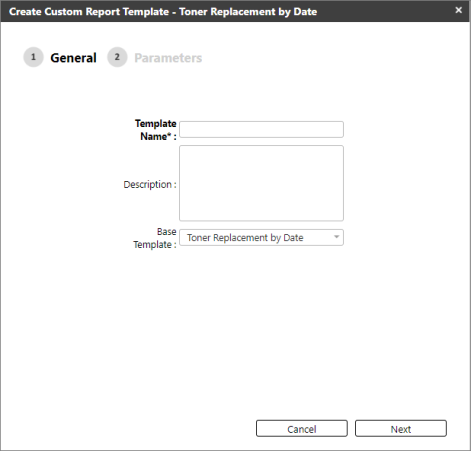
-
Enter the custom report template name. The name must not be a duplicate of an existing report template.
-
(Optional) Input the description of the custom report template.
-
Check the Base Template if correct. The base template should be the template selected in step # 4. If this is not the base template you want, please go back to step #4 and select the desired base template.
-
Click [Next].
If the template name is empty or a duplicate, an error will be displayed, and you will not be able to proceed to the next step.

