Device Configuration Template
Configuration Templates are created to apply specific settings to multiple devices simultaneously. A set of setting values defined for this purpose is called a “template”. The templates are applied to the target devices with DM Agent Embedded installed.
There are four types of configuration templates, and they are described briefly below:
-
Standard Device Preferences (SDP) - This template helps you update general setting items that do not depend on the model.
-
Extended Device Preferences (XDP) - You can create multiple XDP templates and apply configurations to the target devices. The XDP can extract device configuration and resources from a source device. The extracted resource file is used to configure other devices' settings of the same model.
-
Firmware Template - Using the firmware template containing the firmware files, you can remotely perform firmware upgrades to the devices.
-
Embedded Application - Allows the administrators to upload device-embedded applications.
Common Template Tools
The screen of each configuration template is divided into two, the template list and the template details.
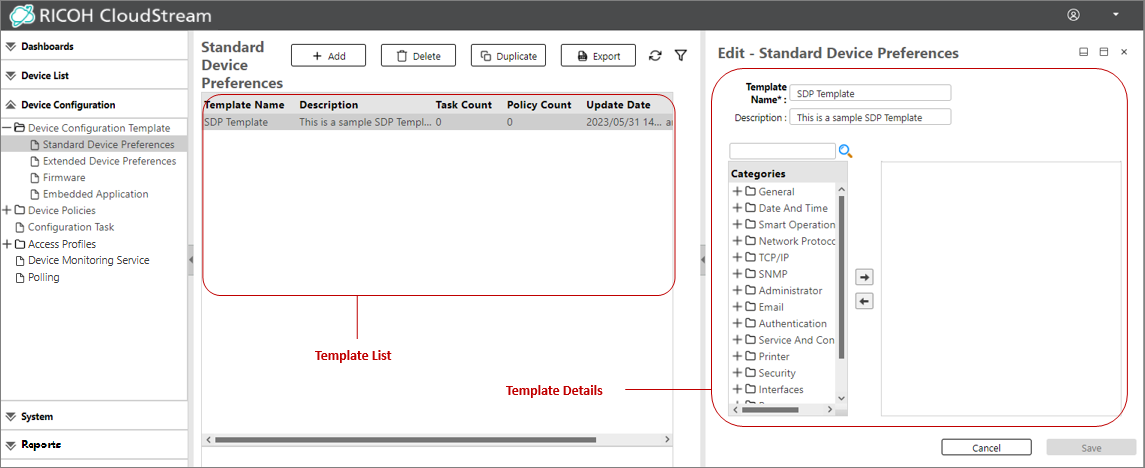
The template list is the grid that lists all templates created. This is the generic layout of all template list grids. The template list has the following common column headers.
|
Column Header |
Description |
|---|---|
|
Template Name |
The name of the template. The template name is unique must not be duplicated. |
|
Description |
Template description |
|
Task Count |
The number of configuration tasks that use the template. |
|
Policy Count |
The number of device policies that use the template. |
|
Update Date |
Date and time the template was last updated. |
|
Updated By |
The admin user who last updated the template. |
|
Action |
Displays the action of the embedded template. The value is either "Uninstall" or "Install or Update". This column is only displayed in the Embedded Application node. |
You can sort the columns in ascending or descending order. The sorting button will appear when you hover over to the right part of the column header.
Template detail is the screen that shows when a user selects a template from the list. The template details screen is displayed on either the right-hand pane or the bottom pane.
The Template Details has two default buttons, the [Save] and [Cancel] buttons.
|
Item Name |
Description |
|---|---|
|
Save |
Saves the changes made in the details view. Clicking this button will validate the correctness of the input of the fields. If an invalid value is detected, an error icon will be displayed beside the field in error, and the changes will not be saved.
|
|
Cancel |
Dismisses all changes made in the fields and displays the previously saved value. |
 If you are modifying a template associated with a device policy, the change will affect the policy status of the devices. Please make sure to execute the associated device policy after saving the changes.
Common Template Toolbar
In every configuration template type, the following are the common tools you will find in the toolbar.
|
Item Name |
Description |
|---|---|
|
Add |
When clicked, a wizard will display to allow users to create a configuration template. |
|
Delete |
A configuration template associated with a configuration policy cannot be deleted. Please remove the template from the associated configuration policy or task before deleting the template. |
|
Refresh |
Displays as |
|
Filter |
Displays as |
|
Duplicate |
This action duplicates a template. Depending on the type of template, this function may not be provided. The copy will keep the original name with a suffix when a template is duplicated.
|
|
Export |
Exports the selected template into a CSV file. Please see the details in Export SDP Template.
|
 icon. When clicked, it refreshes the template list.
 icon. When clicked, the filter boxes appear in each column allowing you to input search text to filter the data in the specified column.
