Export SDP Template
You can export multiple Standard device preferences templates for backup purposes or reuse it for SDP import.
To export the template, follow the steps below:
-
Login as an administrator.
-
Go to Device Configuration and expand Device Configuration Templates.
-
Click on Standard Device Preferences.
-
Select a template, then click [Export to CSV].
-
The download will start right away. Please open your download folder.
The filename of the downloaded CSV contains the date and time the template was exported.
If you want to modify the content of the CSV file, you can open the file and make your changes, but always remember to save the file as CSV.
The document should have the required rows.
-
The first six rows/lines must have the content # Format Version, #Generated at, #Function name, #Template Name, #Description.
-
The following rows or lines must include the Attributes then the Values on the next column. The setting is placed in the Attributes column while the value of the setting is in Value column.
The exported CSV is depicted in the images below.
If you open from MS excel:
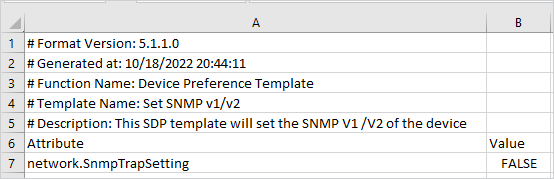
 MS excel does not quote wrap the attributes and values.
If you open using a text editor:
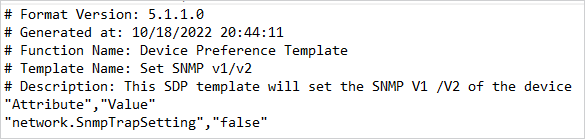
Please ensure that all fields for Attribute and Value are quote wrapped as shown in the text editor view above.
