Add SDP Device Preferences
An example of an SDP template is displayed below:
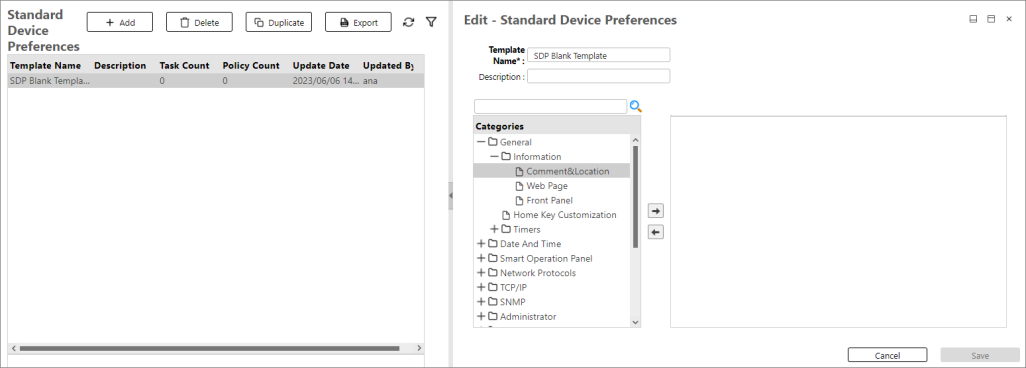
To add settings to the template, you must select the setting from the Categories or Search a Setting, then move it to the right-hand pane, you can use the following buttons.
|
Buttons |
Icon |
Description |
|---|---|---|
|
Expand |
+ |
Expands the category and displays the sub-categories. |
|
Collapse |
- |
Collapses the category. |
|
Add |

|
Adds the selected category, sub-category, or node to the right-hand side. If the category has sub-categories when the [Add] button is clicked, all the sub-categories under the selected category will be added to the right-hand side. |
|
Remove |

|
Removes all unchecked settings from the right-hand side. |
After a category, sub-category, or node is added, you must check the box of the desired setting, then input or select the value of the setting.
The example below shows a template "Paper Tray Type" which aims to set Tray 1 to "Glossy Paper" and Tray 2 to "Cardstock".
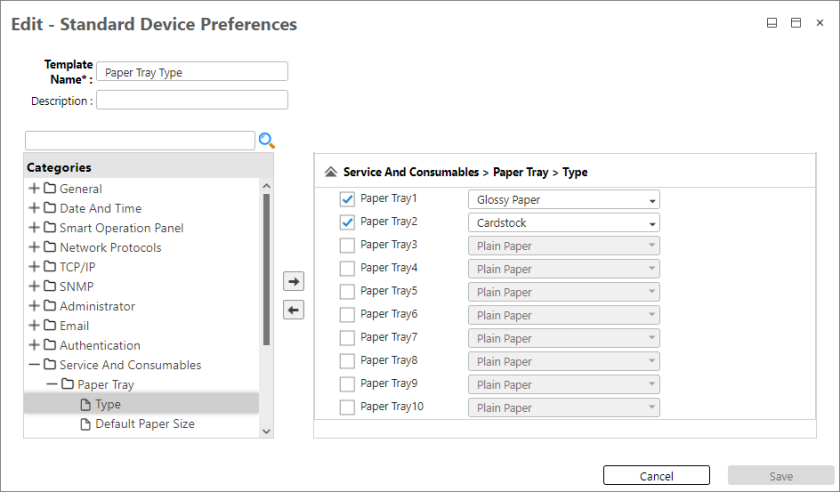
You can use the search function to find settings.
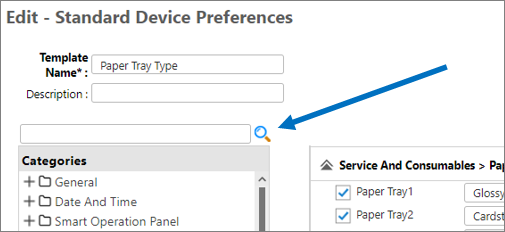
Input the setting's name then click the search icon. All categories that contain the matching setting will be displayed in the Categories pane.
Saving a Template
To save a configuration template, simply click the [Save] button.
Please note that saving a template will remove settings which do not have configurations, leaving only the ones that contain configuration items.
For example, select the General category and add it to the right-hand pane, then configure the Information> Comment & Location only. When you save the template, only the Information> Comment & Location node which contains the configuration items is saved and the rest of the nodes are removed.
