Manage Device Policies
Manage the device policies with the help of the following topics.
| View Device Policy Results. |
| View the policy compliance dashboard. Device Policy Compliance. |
| Check Device Policy Status. |
| Disable a Configuration Policy. |
 The above topics are applicable to all three device policies: Configuration Policy, Embedded Policy, and Firmware Policy.
View Device Policy Results
Device policies will run daily based on the Policy Check time of the day set in Device Polling. The result of this operation can be found in the device properties activity log.
The results vary based on the enforcement type selected.
-
If the selected enforcement type is Check, the settings in the template are compared to the settings in the device. The 'Check' result of one configuration setting will either be:
-
Match - This indicates that the value of the template's setting is the same as the device's setting.
-
Does not match - This indicates that the value of the setting in the template and the device is different.
-
Skip - This indicates that the template's setting does not exist or is not supported by the target device.
 If the enforcement type is "Check" the template is not applied to the target device; therefore, no policy has been applied yet. The policy monitoring will only take effect when the enforcement type is "Apply."
-
-
If the enforcement type is Apply, the settings in the template will be compared and then applied to the device. Only the settings whose value does not match the device will be applied. If the setting's value in both templates and devices is the same, it will not be re-applied.
The 'Apply' result of one configuration setting will either be:-
Match - This indicates that the value of the template's setting is the same as the device's setting; therefore, there is no need to apply the same value to the device.
-
Success - This indicates that the setting's value is applied successfully to the device.
-
Fail - Failed to apply the template setting's value to the device. Possible cause: device error, connection error, or incorrect access account. Please check the description of the error in the activity logs.
-
Skip - This indicates that the template's setting does not exist or is not supported by the target device.
-
Check Device Policy Status
When the device is set as one of the targets of a device policy, you can check its compliance to the policy in the Device List.
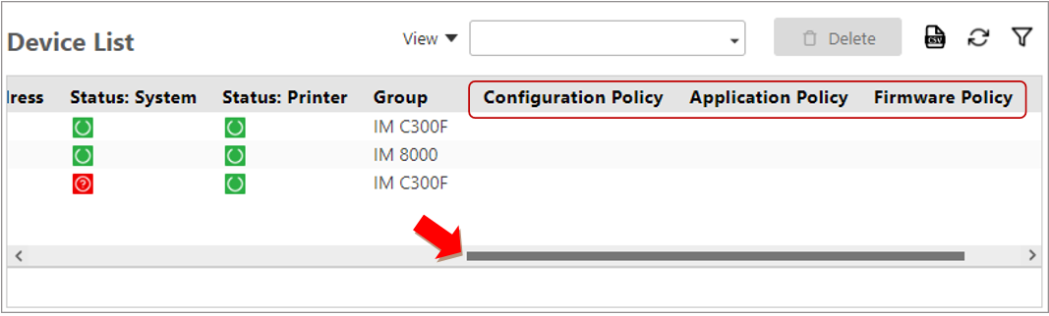
Scroll to the right to see the policy status columns.
If the policy columns is not displayed in the list, you can add them by the right-click menu. Select Columns then click on the policies you want to add to the list.
The device policies (Configuration Policy, Firmware Policy, Embedded Policy) has the following statuses:
|
Icon |
Description |
|---|---|

|
"In-policy" The device is compliant to the policy. |

|
"Out-of-policy" The device is incompliant to the policy. To know why the device is out-of-policy, go check the device's Activity Logs and see the result of the policy execution. More details about policy result in View Device Policy Results. To fix the incompliance, you can create a configuration task and run the template that the device is not compliant with. Refer to Configuration Task for more details. |
|
|
"Unknown" Indicates that the device is not currently assigned to a policy. |

Disable a Configuration Policy
Please follow the steps below to disable a configuration policy.
-
Login as an administrator.
-
Go to Device Configuration, expand Device Policy.
-
Select the policy: Configuration Policy, Firmware Policy, or Embedded Policy.
-
Select the device policy you want to disable.
-
On the General section, select "Disable" as the value of the Enforcement Type.
-
Click the [Save] button.
The configuration policy will become disabled after saving. A disabled device policy is skipped during the Policy Check. All target devices/models that belong to a disabled device policy are marked as “Unknown”.
