Device Policy Compliance
The Device Policy Compliance dashboard shows whether the devices are compliant with the security standards. The security standards are set when creating a configuration, embedded, and/or firmware policy.
An example below is how the Device Policy Compliance is displayed in the dashboard.
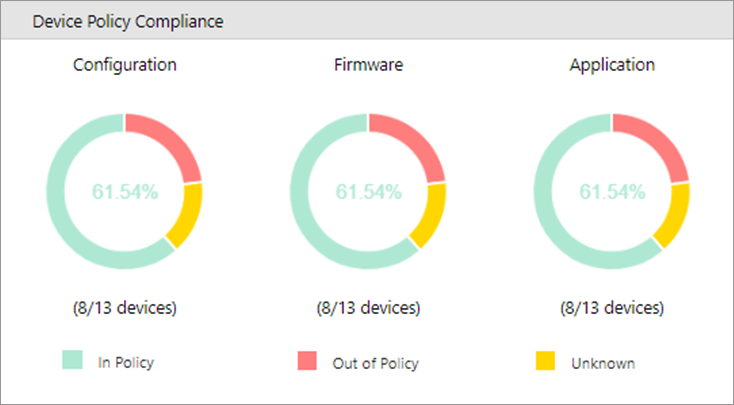
The percentage in the middle of the chart shows the percentage of fleet devices compliant with the policy.
|
Policy Status |
Description |
|---|---|
|
In Policy |
The devices will become 'In Policy' depending on the result of the Policy Check.
|
|
Out of Policy |
Out-of-Policy status is attained if the Policy Check results in 'fail' or 'skip'. Out-of-Policy devices do not have the same settings as the device policies (configuration policy, embedded policy, firmware policy), the device is offline, or unable to communicate with the device. Refer to Troubleshooting Out-of-Policy devices for more details. |
|
Unknown |
An 'Unknown' status is attained if the Policy Check or Apply is currently being processed. If the device is not assigned to any device policy, then it will be considered 'Unknown'. |
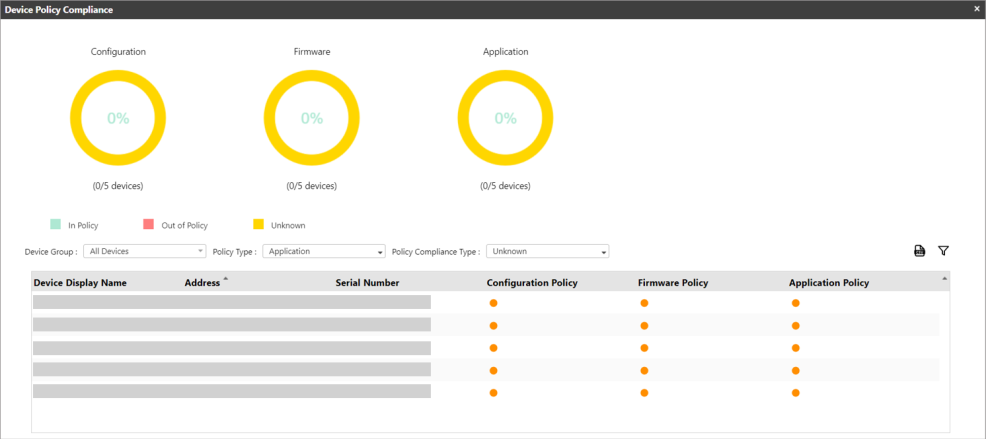
Clicking the chart will open the Device Policy Compliance detailed screen, similar to the image below.
| Item | Description |
|---|---|
| Device Group | Select a group in the dropdown to display the devices within that group. |
| Policy Type | Select policy type. Options are
|
| Policy Compliance Type | Select the type of policy compliance status you want to see. Options are In Policy, Out of Policy, and Unknown. |
| Export from CSV | Click this icon to export the list in the table into a CSV file. |
| Filter | Click this icon to filter the device in the table. |
| X | Closes the Device Policy Compliance screen. |
Troubleshooting Out-of-Policy devices
When the device becomes Out-of-Policy, check the cause of failure during the Policy Check. You can read the reason when you open the device's Activity Logs.
-
Check if the device is online. Access the device's Web Image Monitor(WIM) to verify. The device should be online during the Policy Check.
-
Check if the device does not support the device policy settings.
If the target device does not support the setting set in the device policy, the result will display 'skip' or 'fail', putting the device in Out-of-Policy status.
For example:
You created a Configuration Policy that sets the access control for Copy and Fax, aiming to require users to authenticate before using the Copy and Fax feature of the device.
After the Policy Check, the devices that do not support Fax are placed in Out-of-Policy status.
To fix this problem, create a new Configuration Policy that sets the Copy access control only and select the devices that do not support Fax as target devices. By doing so, the devices will become 'In Policy'.
