Administrator Roles
Each local admin account is assigned to one or more admin roles. All admin roles are built-in, but you can customize the privileges assigned to each role, with the exception of the Full Admin role.
 There are a default set of privileges assigned to the built-in roles. Even accounts assigned Full Admin or Security Admin cannot edit the default set of privileges assigned to these built-in roles.
A role can be assigned to an LDAP group or OIDC group; however, local admin accounts can be assigned to multiple roles.
This section will discuss the following topics:
| Terminologies. |
| Assign a Group Name to a Role. |
| Edit Privileges and Users. |
Terminologies
-
Admin Account - Local admin who logs in to CloudStream DM to carry out admin tasks. Each account can have one or more admin roles.
For example, an admin account that manages the devices and manages the application users.
-
Admin Role - There are nine admin roles, each with a different set of privileges.
Here is a list of roles.
Refer to Flexible Administrator Role for instructions to enable the role on target devices.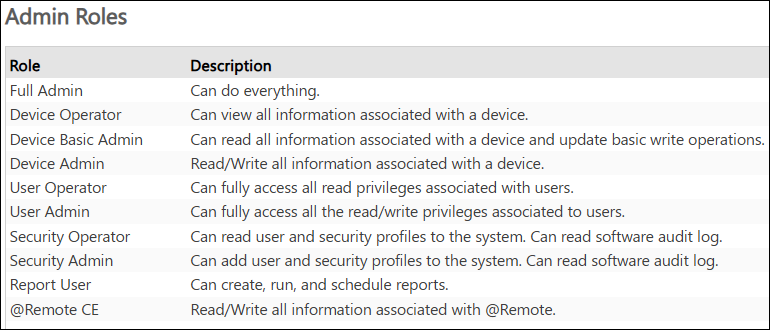
-
Privileges - There are twelve types of privileges. The privileges granted to each role will determine the type of access the users of the role have. The types of privileges are:
Privileges
Description
SysConfigRead
Display the system settings information.
SysConfigWrite
Update system settings (other than the role, user, LDAP/OIDC profile of a user)
SecurityRead
View the role, user, LDAP/OIDC profile of a user
SecurityWrite
Update the admin roles, use LDAP/OIDC profile of a user.
DeviceBasicWrite
Create/update/delete polling tasks and related tasks.
Create/update/delete device groups.
Change device access accounts and custom properties.
Update e-mail address lists
DeviceAdvancedWrite
Create/update/delete device settings, SDK/J Platform and Embedded Applications
Add/update/delete structure change notification policies.
Update device drivers
UserRead
View user information
UserWrite
Create/update/delete user information
DeviceRead
View device information
Reports
Create/update/delete/configure schedules for reports
Assign a Group Name to a Role
-
Login to CloudStream DM as an administrator.
-
Go to System.
-
Expand Security and click Admin Roles.
-
Select the Admin Role you want to assign to the external users when they login to CloudStream DM.
If you assign a group to an admin role, all users that belong to the group will inherit the role when they login to CloudStream DM. You can only assign one group to a role. -
If the authentication profile is an LDAP, enter the LDAP group name in the Group Name text field.
-
If the authentication profile is an OIDC, enter the Object ID in the Group Name text field.
-
Click [Save].
Edit Privileges and Users
 You cannot edit the role type that is assigned to the default Full Admin account. This is cautionary to prevent lockout from the system if only a single Full Admin account exists. If the account is deleted inadvertently, you must contact your Ricoh Support Team for assistance.
-
Login to CloudStream DM as an administrator.
-
Go to System.
-
Expand Security and click Admin Roles.
-
Select the role you want to modify.
-
Go to Privileges node.
-
Apply your changes by enabling and disabling the privileges for the role.
-
Click [Save].
-
Go to the Users node.
-
Click the local admin users you want to assign to the role.
By doing so, the role will also display in admin accounts' role information.
-
Click [Save].
