Local Administrators
This section covers the following topics related to local administrator accounts.
| Add Local Administrator |
| Login as a New Local Administrator |
| Unlock an Admin Account |
| Change Password via Forgot Password |
| Change Password from User Menu |
Best practice
Create at least two local administrator accounts, with names that do not have the word 'admin' or 'administrato'r in them and disable the default local admin user account. These two accounts must be assigned the full admin role.
In the event that one account is locked, the other can continue to manage the system and unlock the locked administrator’s account.
Add Local Administrator
-
Login to CloudStream DM as administrator with Full Admin privileges.
-
Go to System, then expand Security, and click Admin Accounts.
-
Click [Add] to display the Add - Admin Accounts screen.
-
Input the user name of the admin account. The user name must not be a duplicate of any existing admin accounts.
-
Click the [Change] button to change the password. Input the initial password of the admin account.
 The password must conform to the Local Password Policy; otherwise, the password will not be accepted. Once the account is created, the admin must change their password at first login. You can find the information in Local Admin Password Policy.
 -
Confirm the password and click [OK]. The password will display masked in the text box.
-
Select the role of the admin account. The role of the admin account will determine the type of access the account will have. You can select multiple roles, or if you plan to give full permission to use all system features, choose "Full Admin".
This field is required.
-
Input the first name and the last name of the admin account.
-
Enter the email address of the admin account. This item is required.
-
Enter the phone number of the admin account. This item is optional.
-
Click the [Save] button.
Once the local admin account is created, please inform the admin user that they can login to CloudStream DM using the user name and password you configured in the above steps. New local administrators are required to change their password at first login.
Login as a New Local Administrator
For first-time login, you must have the following information:
-
Access to CloudStream DM URL.
-
The user name and password.
Follow the steps below to login.
-
Go to the RICOH CloudStream login site.
-
Leave the Profile empty.
-
Enter the user name and password provided to you.
-
Click [Login].
-
For first-time login, a pop-up dialog will display; from there, enter the password given to you.
-
Enter your new password and confirm it.
-
Click [OK].
-
After you have successfully changed your password, login again using your new password.
The Dashboard page is displayed after you successfully change your password.
The account will be locked if you input the wrong password more than the set threshold. A Full Administrator account has the access rights to unlock a locked account. Please see details about the account-locked threshold in Local Admin Password Policy.
Unlock an Admin Account
When an admin account gets locked after multiple failed login attempts, an administrator with Full Admin privilege can unlock the account.
-
Login to CloudStream DM as administrator with Full Admin privilege.
-
Go to System, then expand Security, and click Admin Accounts.
-
Select the admin account you want to unlock.
-
Uncheck the "Account locked" checkbox.
-
Click [Save].
Unlocked accounts can log back in to CloudStream DM.
This screen also gives you an option to lock an inactive account; you can do so by checking the "Account locked" checkbox of the account.
Change Password via Forgot Password
| Precondition |
|---|
| To use "Forgot Password", it is important that the Email Server Settings is configured and working. Users who use "Forgot Password" will receive an email containing their temporary password. |
Forgot your password? You can change your password using the instructions below.
-
On the RICOH CloudStream login page, click "Forgot Password?".
-
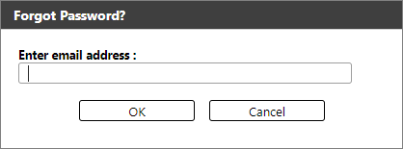
From the dialog, enter your email address registered to the application.
-
Open your email inbox and check the message sent from CloudStream DM. You will receive an email containing your temporary password.
 If you can't find the message, please check your spam folder.
 -
Go back to the CloudStream DM login page.
-
Enter the username and the password sent to your email address.
-
A dialog will prompt you to change your password; proceed to enter the password.
-
Provide a new password, then confirm it.
-
Click [OK].
-
After you successfully change your password, login again using your new password.
If the user forgets the password and inputs the wrong password more than the threshold, they can change their password after their account is unlocked.
Change Password from User Menu
You can change your password while logged into the application via the user menu.
-
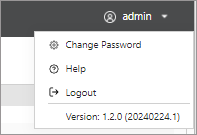
From the top right corner of the screen, click your username to display the user menu.
-
Select "Change Password".
A pop-up message will display requiring your current password and the new password.
-
Input your current password and your new password.
The new password must conform to the Local Password Policy; else the password will not be accepted. Refer to Local Admin Password Policy to see the password requirements. -
Click [OK].
-
Logout of the application and login again using your new password.
