Create Dashboard
A default dashboard is what you see in Dashboards section the first time you login to RICOH CloudStream Device Management. To create a customized dashboard, you have to duplicate the default dashboard and then customize the new dashboard to your liking.
The custom dashboard is only visible to the administrator account who created it. The default dashboard is the only public dashboard visible to other administrators.
To create a customized dashboard, follow the steps below.
-
Login as an administrator.
-
In the Dashboards screen, make sure the default dashboard is selected in Dashboard dropdown menu.

 If you have created a custom dashboard, you can also duplicate them. In such case, select the custom dashboard you want to copy.
 -
Click the
 Duplicate icon.
 -
A dialog is displayed; please input the dashboard name. The name must not be a duplicate of the existing dashboards.
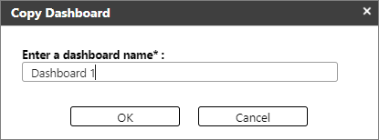
An example above shows that "Dashboard 1" is the name of the duplicate dashboard.
-
Click [OK].
-
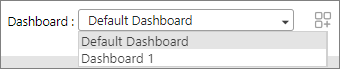
Click the Dashboard dropdown, and you will see the duplicate dashboard.
-
Select the new dashboard.
-
Click the
 Edit Dashboard icon to modify the displayed widgets.
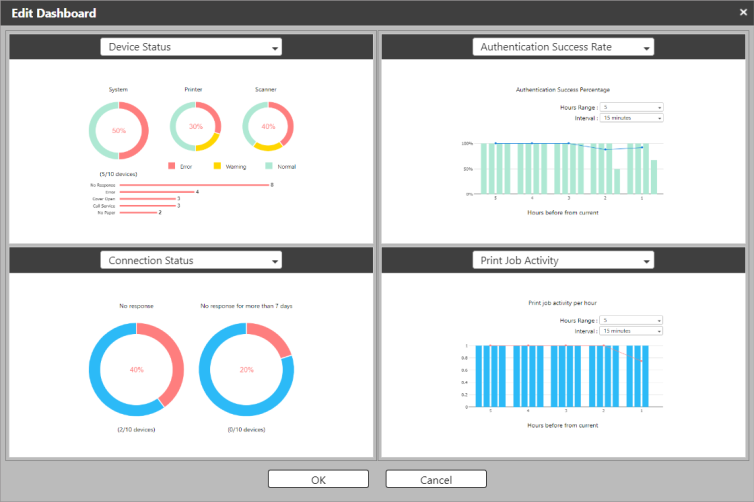
A similar dialog is displayed.
-
Select from the dropdown the type of widget you want to display in the Dashboards screen.
-
(Optional) Move the widget by dragging and dropping. Click and hold the widget, then drop it to arrange the widget.
-
Click [OK].
If you want to delete a dashboard, go to Rename Dashboard and Delete Dashboard.
