Certificates and Service Locator URL
Find the following topics to manage the certificates and set the Service Locator.
| Find the Service Locator URL. |
| View Certificates. |
| Revoke Certificate. |
| Download Root CA Certificates. |
Find the Service Locator URL

-
Go to System and expand Security.
- Click Client Certificates.
- Go to Service Locator.
- Copy the service locator and note it down for future purposes.
View Certificates
An equivalent certificate is generated when one of the following is registered to CloudStream DM.
-
When a device is added, a 'DM Agent' client type certificate is generated. There will be an assigned certificate for each device.
-
When an auth agent is configured and connects to CloudStream DM, an 'Auth Agent' client type certificate is generated. There will be an assigned certificate for each auth agent.
-
When a WfH device is added, a 'Work from Home Client' client type certificate is generated. There will be an assigned certificate for each WfH client.
You can view the generated certificate in System section.
-
Go to System and expand Security.
-
Click Client Certificates.
-
Go to Certificate Management.
The Certificate Management options are shown below, and described in the following table.
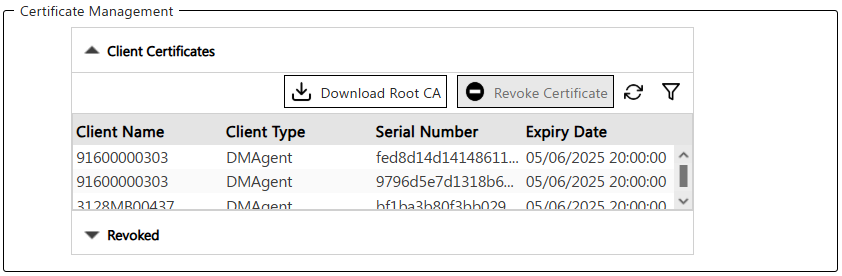
Column Header
Description
Client Name
Displays the name of the certificate.
-
For the DM Agent client type, the device serial number will be displayed.
-
For the Auth Agent client type, the server computer name will be displayed.
-
For the WfH Client client type, the computer name where the WfH Client is running will be displayed
Client Type
Either one of the following is displayed:
-
Auth Agent
-
DM Agent
-
Work from Home Client
Serial Number
The fingerprint of the certificate.
Expiry Date
The date and time the certificate will expire.
The certificate will expire one year after its creation. Expired certificates will be revoked.
-
Revoke Certificate
Revoking the certificate will stop communication with the application. Before revoking a certificate, please make sure that no other admin or user is using the device or the Auth Agent. Revoking a certificate cannot be undone.
-
Login as an administrator.
-
Go to System and expand Security.
- Click Client Certificates.
- Go to Certificate Management.
-
Select the certificate you want to revoke. Use the filter option to narrow down your search. For example, if you are revoking an Auth Agent, filter the Client type first, then locate the Client name.
-
Click Revoke Certificate.
-
Confirm to revoke of the certificate.
Once revoked, the certificate appears in the Revoked section of the table only, as shown below.
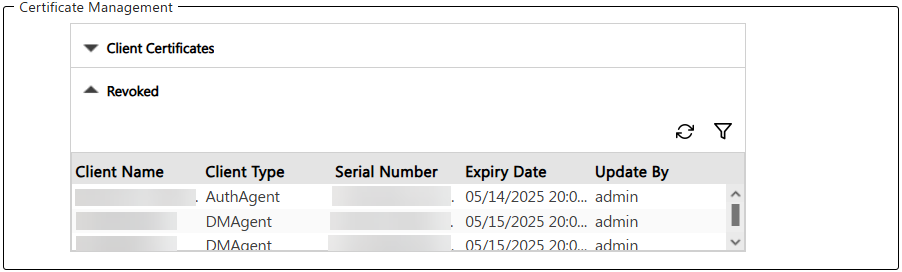
 If you revoke a certificate accidentally, please generate an onboarding code again and re-install the application. A certificate will be generated if the re-installation is successful.
 If a certificate is revoked, the following will happen:
-
Revoked DM Agent certificate - The device is removed from the Device list.
-
Revoked Work from Home certificate - All WfH devices connected to the revoked WfH Client are removed from the Device list.
-
Revoked Auth Agent certificate - The Auth Agent is removed from the LDAP Authentication profile's Auth Agent node, causing LDAP users to be disconnected.
Download Root CA Certificates
If using a load balancer or Web Application Firewall trust store, you can download the root CA certificate, without including the private key.
-
Login as an administrator.
-
Go to System and expand Security.
- Click Client Certificates.
- Go to Certificate Management.
-
Select the certificate to download.
-
Click Download Root CA.
-
Choose a file location to save the rootCA.pem file.
