OpenID Connect Authentication Profile
CloudStream can connect to the following Identity management services:
-
Microsoft Entra ID
-
Okta
Please perform the following prerequisites before you create an OIDC authentication profile to connect to either service.
| Prerequisites | ||||||||||||
|---|---|---|---|---|---|---|---|---|---|---|---|---|
|
The OIDC authentication provider must be configured based on the following requirements: Prerequisites for Microsoft Entra ID and Okta:
Prerequisites for Microsoft Entra ID:
Prerequisites for Okta:
|
Follow the steps below to create an OpenID Connect (OIDC) authentication profile.
 Refer to Configure Entra ID OIDC Application for general instructions to set up the Entra ID OIDC application.
-
Login as an administrator.
-
Go to the System section.
-
Expand Security and click on Authentication Profiles.
-
Click Add.
-
Choose OpenID Connect as the type.
-
Enter the name of the authentication profile.
-
IClick Save.
Clicking Save will create the auth profile item in the list. -
Expand OIDC node.
-
Provide the following information to configure the OpenID Connect profile:
Item
Description
Authorization Endpoint
Enter Authorization Endpoint URL.
Token Endpoint
Enter Token Endpoint URL.
JWKS URI
Enter JSON Web Key Set (JWKS)URL.
Issuer
Enter Issuer URL.
Client ID
Enter the Client ID.
Client Secret
Click the Change Password button and enter the Client Secret.
Scope
Enter the space-delimited scope values.
By default, the value is "openid profile email phone address offline_access".
If configuring this profile for Okta, ensure you add a scope for 'groups'.Login User Name
Enter the attribute to identify the login user name.
The default value is "preferred_username".
If you use the document delivery function using a user name and password, be sure to set a deliverable user name attribute for [Login User Name]. The username of job log, job queue, and job history of the scan jobs of the OIDC login user is displayed according to this setting.Display Name
Enter the display name. The default value is "name".
Email Address
Enter the attribute of the e-mail address of the user. The default value is "email".
Group
Enter the attribute of the group name. The default value is "groups".
Home Folder
Enter the user home folder attribute.
The Home Folder attribute is not supported for OKTA.Card ID
Enter the card ID attribute.
The Card ID attribute is not supported for OKTA.User PIN
Enter the PIN code attribute. Only single-byte alphanumeric characters can be used.
Department
Enter the department attribute.
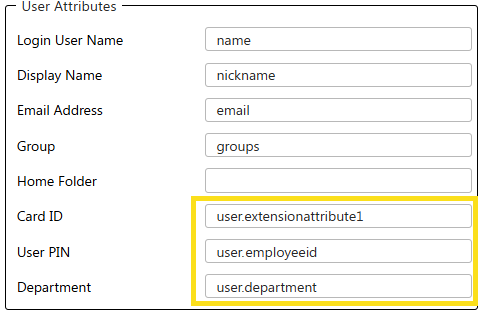
The Department attribute is not supported for OKTA.Enter the Source Attributes from the Service Provider in the specific CloudStream fields, as shown below in the example. Note that these source attributes are examples only and used for demonstration purposes.
-
Click [Save].
-
After saving the authentication profile, click Check connection.
The test should return "Connected successfully" message.
If the test returns an error, check OIDC Check Connection for more details.
A working OIDC authentication profile should return "Connected successfully" message when you click the [Check connection] button.
A connection test for the Okta identity server is not supported and will return the message "OKTA test connection unsupported". If it returns an error, please check the following:
-
1011: OIDC connection failed - unauthorized_client [Client ID parameters is malformed or incorrect]
When the client ID parameter is malformed or incorrect, this error will be displayed. Please check if the Client ID you provided is correct.
-
1012: OIDC connection failed - invalid_request [Request parameter (e.g: Token Endpoint) is malformed or incorrect]
When a request parameter (e.g: Token Endpoint) is malformed or incorrect, this error will be displayed. Please ensure the parameters provided follow the correct form and correct.
-
1013: OIDC connection failed - invalid_client [Connection to token endpoint was successful but the token cannot be acquired successfully]
When the connection to the token endpoint server is successful, but the token cannot be acquired successfully.
-
1004: Server error processing request.
This happens when the check connection is executed and the auth profile fields are empty.
