Device Consumables Replace for Brother MPS Report
If you have integrated the Device Management Service to monitor Brother devices, you can generate a report that will specifically contain Brother-specific replace information.
 The report will contain the following columns: Device Type, Serial Number, MAC Address, Date*1, Total Page Count, Color Page Count, Monochrome Page Count, Black (BK) Toner/Ink Replace Count, Cyan (C) Toner/Ink Replace Count, Magenta (M) Toner/Ink Replace Count, Yellow (Y) Toner/Ink Replace Count, Drum Unit Replace Count, Drum Unit Black (BK) Replace Count, Drum Unit Cyan (C) Replace Count, Drum Unit Magenta (M) Replace Count, Drum Unit Yellow (Y) Replace Count, Waste Toner Box/Waste Tank Replace Count, and Belt Unit Replace Count.
-
Click Reports ® Report Templates ®Consumable Reports.
-
Select Device Consumable Replace for Brother MPS from the reports table.
-
From the toolbar, click Run on Schedule.

-
In the Create New Report Task screen, enter a Task name, and an optional description. Click Next to proceed.
-
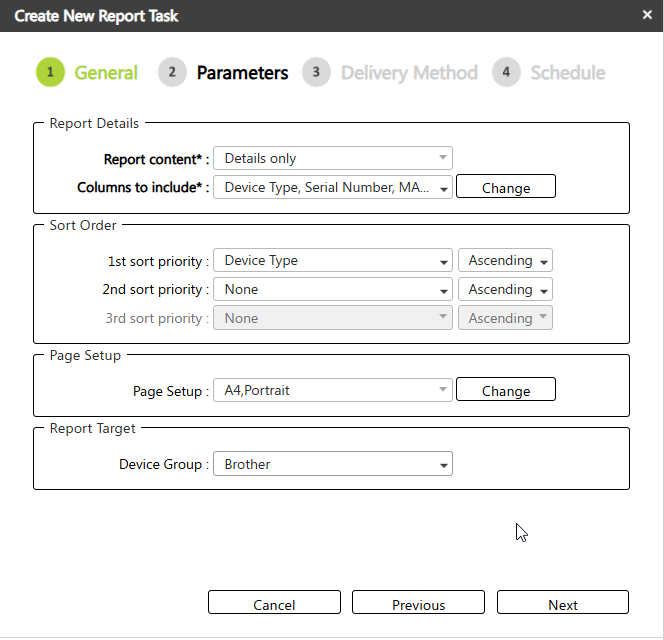
In the Parameters screen, change the Report Target to a Device Group that contains the Brother models. Leave all other settings at their defaults. Click Next.
-
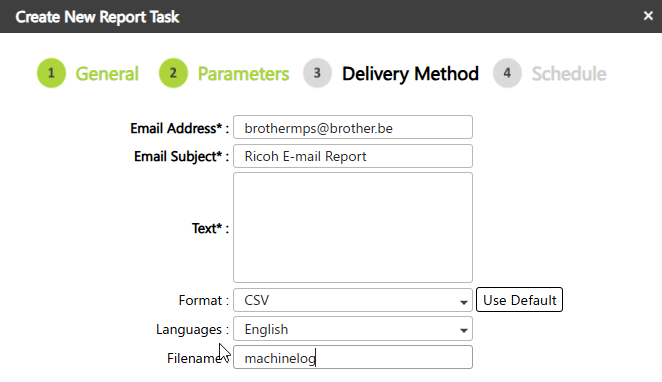
In the Delivery Method screen, enter the following information as shown below and then click Next to advance.
-
Email Address: Confirm the email address with your local Brother Operation Company. The MPS email address will be based on the country where the contract has been created. For example, for a French contract, only the French inbox should be used.
-
Email Subject: Type "Ricoh E-mail Report" (without quotes)
-
Text: Enter a space in the field to leave it blank
-
Format: Select CSV
-
Language: English
-
Filename: Type "machinelog" (without quotes)
-
-
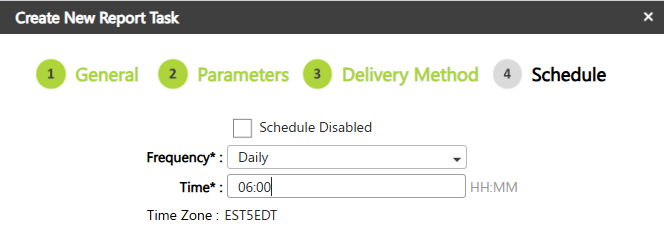
In the Schedule screen, set the Frequency to Daily and select a time when the report will be generated and sent.
-
Click OK to complete the report task.
The task will run according to the schedule you created. To view or modify the task, click Reports ® Report Tasks. Click on the task in the list, and you can modify the details as needed.
You can find the Report Task logs under System ®Logs ® Report logs.
