Identify Device DM/PS Version
You can add columns to the Device List that indicate the DM Agent and/or Print&Scan Embedded versions installed on a device. You can add these columns to any View type in the Device List.
-
Load the Device List.
-
Right-click anywhere on the column header, and select Columns from the menu. Click DM Agent version and / or PS Embedded Version to check them and thereby add these columns to the current view.
-
Click away from the right-click menu to close it and view the added columns.
You can click on the column name and drag it left or right to change the location where it appears. If you always want to view these columns immediately without scrolling, drag the columns left so you will see them immediately when this Device List view loads.
 Ensure you save the view. Click on the View drop-down button and select Save As. Enter a name for the view.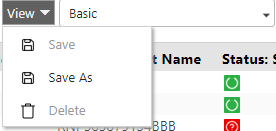
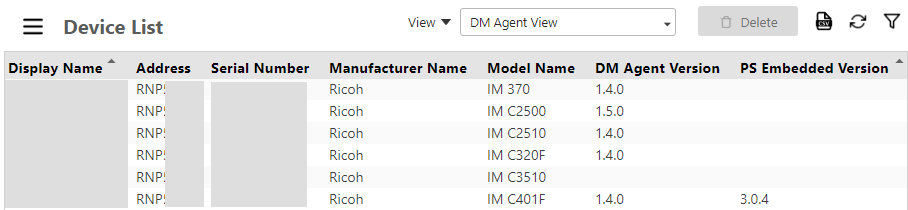
The columns are displayed and indicate the specific version of DM Agent and PS Embedded installed on the device. If DM Agent or PS Embedded is not applied to the device, the column is blank.
These columns are not included in generated reports.
