Authentication Success Rate
Authentication Success Rate dashboard shows the percentages of successful authentication based on the range.
An example below is how Authentication Success Rate is displayed in the dashboard.
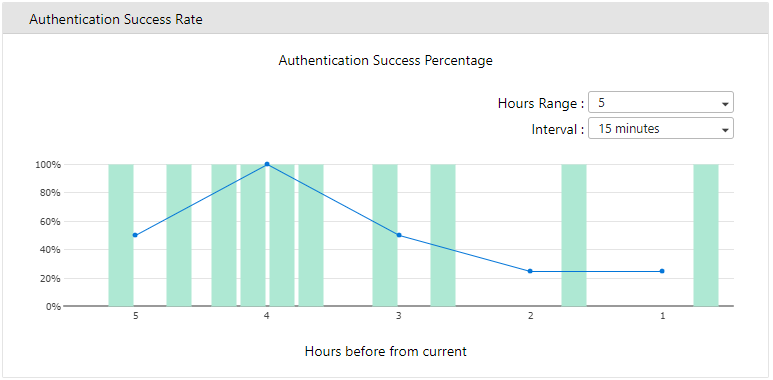
To change the data displayed in the dashboard, modify the following settings to see the line and bar graph update based on your selection.
|
Item |
Description |
|---|---|
| Hours Range |
Select past hours to show from now. Options are 5 hours, 10 hours, and 15 hours. The default is 5 hours. |
|
Interval |
Select the interval to a group in minutes. Options are 10 minutes, 15 minutes, 20 minutes, and 30 minutes. The default is 15 minutes. |
Click a part of the graph to open the Authentication Success Rate window showing the authentication records.
For example, if you click the green portion of the graph, you will see a similar screen pop-up.
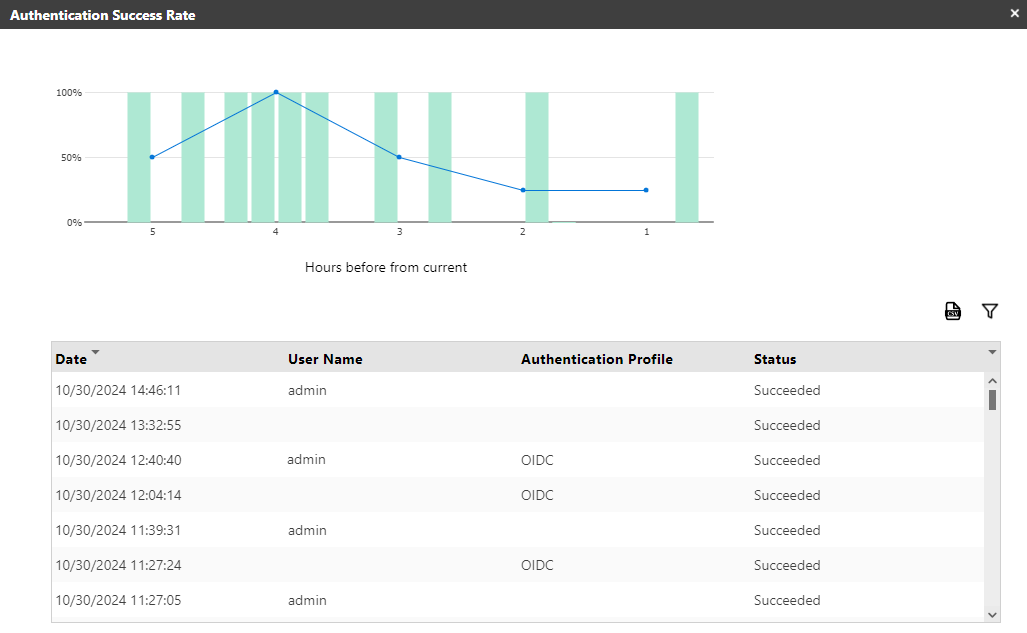
On the above screen, you can see all authentication records.
The Authentication Success Rate detailed screen also has the following functions you can use.
|
Item |
Description |
|---|---|
|
Export from CSV |
Click this icon to export the list in the table into a CSV file. |
|
Filter |
Click this icon to filter the device in the table. |
|
X |
Closes the Authentication Success Rate details screen. |
