Device Monitoring Service Polling & Discovery
You can find the following information on this topic.
| Device Discovery Range. |
| Polling & Discovery Settings. |
| Identify Device Monitoring Discovered Devices in the Device List |
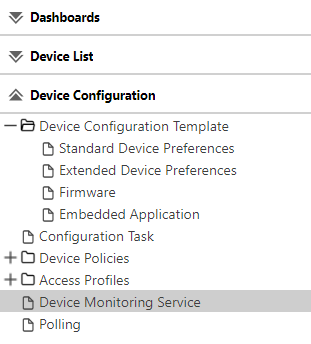
When a new Device Monitoring Service (DMS) is registered with CloudStream, a new DMS option appears in the Device Configuration list.
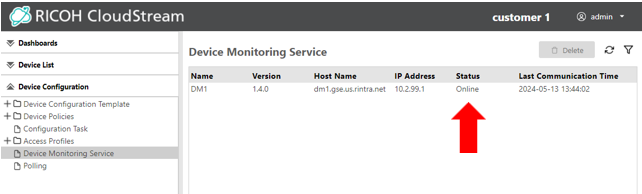
All DMS's that have registered with your Customer ID are listed on this screen. The name refers to the "Friendly Name" created during installation.
 The status reports either "online" or "offline". If no services have been contacted by the DMS for more than 15 minutes, the status is reported as "offline".
-
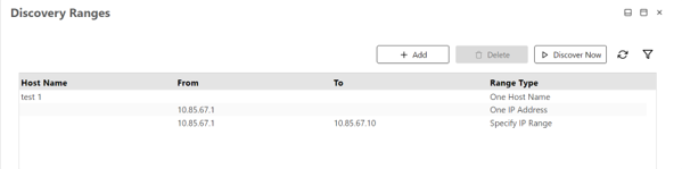
To set the discovery range, click on the entry in the list to select it and view the Discovery Ranges screen.
-
Click Add to enter a new range.
-
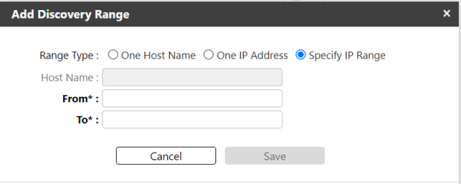
Select one Range type, and then enter the Host name (if necessary), and the From and To IP Address range or a single IP Address based on your range selection.
-
Click Save.
-
To perform discovery immediately, click Discover Now. Otherwise, proceed to set a discovery time of day below.
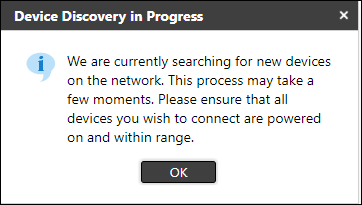
An information message will appear to indicate that the search has begun. Click OK to clear the message.
 If more than one On-Premise DMS has the same discovery range, both will report the same devices.
If a Ricoh device installed with DM Agent is discovered by the DMS, it will not monitor this device.
Polling intervals for the DMS are configured under Device Configuration ® Polling.
-
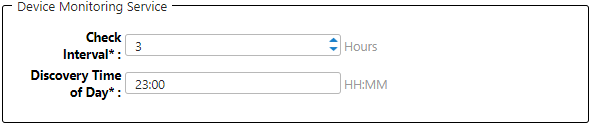
Locate the Device Monitoring Service section.
-
Set the Check Interval in hours. The minimum value for the Check Interval is 1 hour, which means the service will perform polling every hour.
-
Set the Discovery Time of Day to discover devices. At this time each day, the DMS will run to discover devices within the set discovery range.
-
Click Save.
For Brother MPS devices, only the following properties are obtained from polling: Display Name, Model Name, Vendor Name, Serial Number, MAC Address, Device Address, IP Address, Status Poll Time, Supply Poll Time, Other Poll Time, Counter Poll Time, Last Communication Time, Device Type, System Version.
For Brother MPS devices, the following counters are obtained: Total, Copy Black, Copy Color Full (*), Printer Black, Printer Color Full (*), Printer Color Twin (*), Scanner Send Mono, Fax Black, Duplex, Total Mono, Total Color (*)
* These counters always show "0" (zero) for Monochrome devices.
Identify Device Monitoring Discovered Devices in the Device List
To view devices monitored by the DMS, you can add a column to the device list.
-
Go to Device List.
-
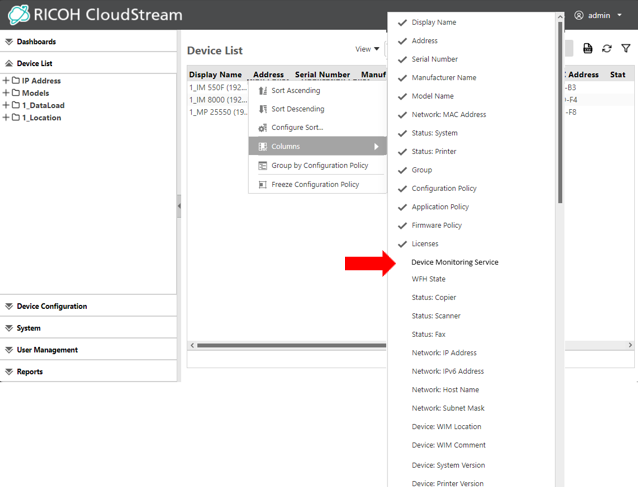
Right click on the table header to view the sub menu.
-
Select Columns and then select Device Monitoring to check the new column.
-
Click away from the menu to close it.
-
You may need to scroll right to view the Device Monitoring Service column. For devices added by a DMS, this column will show the Friendly name of the DMS that was created when it was installed on the On-premise server.
For any devices added by a DM Agent or WfH client, this column will be empty.
To delete a monitored device, select the device and click Delete. Note that if Device Discovery is performed again (as described above in Device Discovery Range) and this device is within the discovery range, the device will appear in the Device List again.
