About this Guide
This guide details the features and functions available in RICOH CloudStream.
Copies of the manual are also available in PDF format.
Please check the links below to get the PDF copy of the technical documents. You can also visit the Home page quick links.
-
Download Device Management Guide - PDF copy
-
Download Work from Home Client Installation Guide - PDF copy
-
Download Auth Agent Installation - PDF copy
If you would like to access the RICOH CloudStream Print&Scan help guide, go to Print&Scan.
Help Navigation Menus
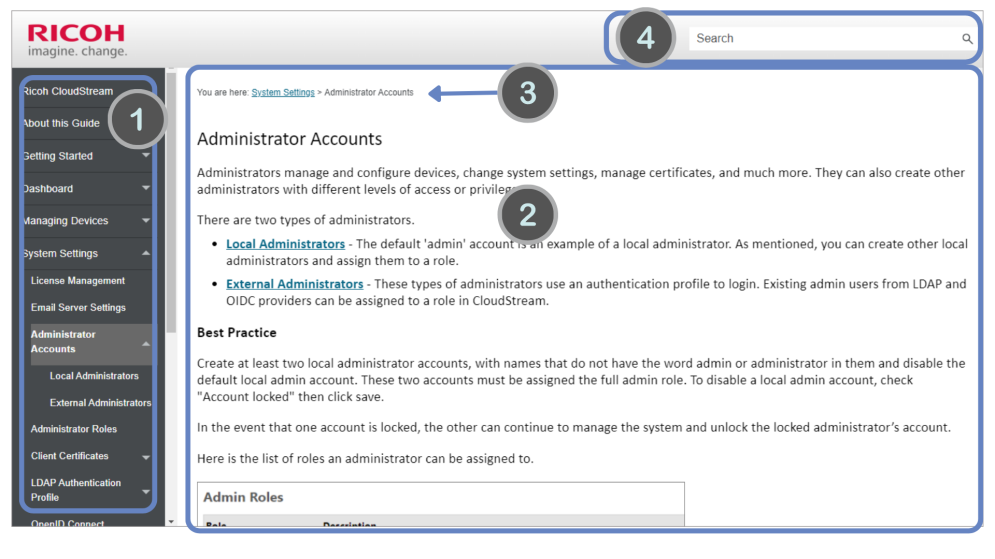
The help site is divided into three sections that allows you to access the information conveniently.

|
Side Navigation Menu - List the main topics of this guide. The list are based on the key features of RICOH CloudStream. Expand the list to the see the sub-topics. Clicking the Ricoh Logo at the top will bring you to the Home page.
|

|
Contents - Displays the information of the topic selected. When searching for a topic, click on of the matched results and you will find he information in this portion of the screen. When navigation to sub-topics, the top most portion of the content will display the topic breadcrumbs. Click the link to navigate back to the parent topic.
|

|
You are here - Displays the parent topic of the guide you are viewing. You can click the topic to navigate to the parent type. For example, you have this topics in your view:  The guide that you are viewing is Paper Tray Status, and this is a type of Status Details. The status can be found in Managing Devices topic.
|

|
Search - The search bar is displayed constantly at the top of the screen. You can search for any topic and the list of matched results will be displayed in the Content portion. |
Search
Input the text in the Search text field and hit enter key in your keyboard or simply click the help button to start searching the topics that matches the string that you are searching.
When searching you will be given a list of matching topics. Click the topic link and you will be redirected to the content that you are searching.
If the search result returns empty, please check your spelling or simply navigate the topics in Side Navigation Menu and see if the topic you are looking is listed or mentioned in the Related Links item.
Symbols
The following symbols are used in the manual to help you identify content quickly.

This symbol indicates important points to note when operating the equipment.

This symbol indicates supplementary information that you may find helpful when completing a task.
[Bold Text]
Bold text indicates the name of buttons displayed on the computer screen.
Bold Italic Text
Bold and italic text indicates the name of the screen of field displayed on the computer screen.
Tables
The following tables are used in the manual to guide and inform you of necessary information and steps.
Prerequisites
| Prerequisites |
|---|
| Requirement 1 |
| Requirement 2 |
-
This type of table lists all the requirements or the prerequisites necessary before you perform the instructions.
-
It may include links to where you can acquire or perform required configurations.
Order of Steps
| Order | Instruction |
|---|---|
|
|
Instruction 1 |
|
|
Instruction 2 |
-
Please follow the order described in this table before you start the steps.
-
It usually includes links to the steps and other helpful information.
List of features and functions
| Link to Feature 1 |
| Link to Feature 2 |
-
The features are not in order or may not be dependent on each other.
-
The information includes links to the steps and other helpful information.
Information
|
Item |
Description |
|---|---|
|
Item 1 |
Description for Item 1 |
|
Item 2 |
Description for Item 2 |
-
The table may be used to list settings available for the specific function. It is also used to list column headers and other helpful information.
-
The information may include links and other helpful information.
NOTE
You agree and acknowledge that Ricoh will delete the information provided by you (including your personal data) within a reasonable period of time after the termination of your license of the Software (including trial and NFR licenses).
